
Tour of the app
The top bar, bottom navigation, settings and command palette
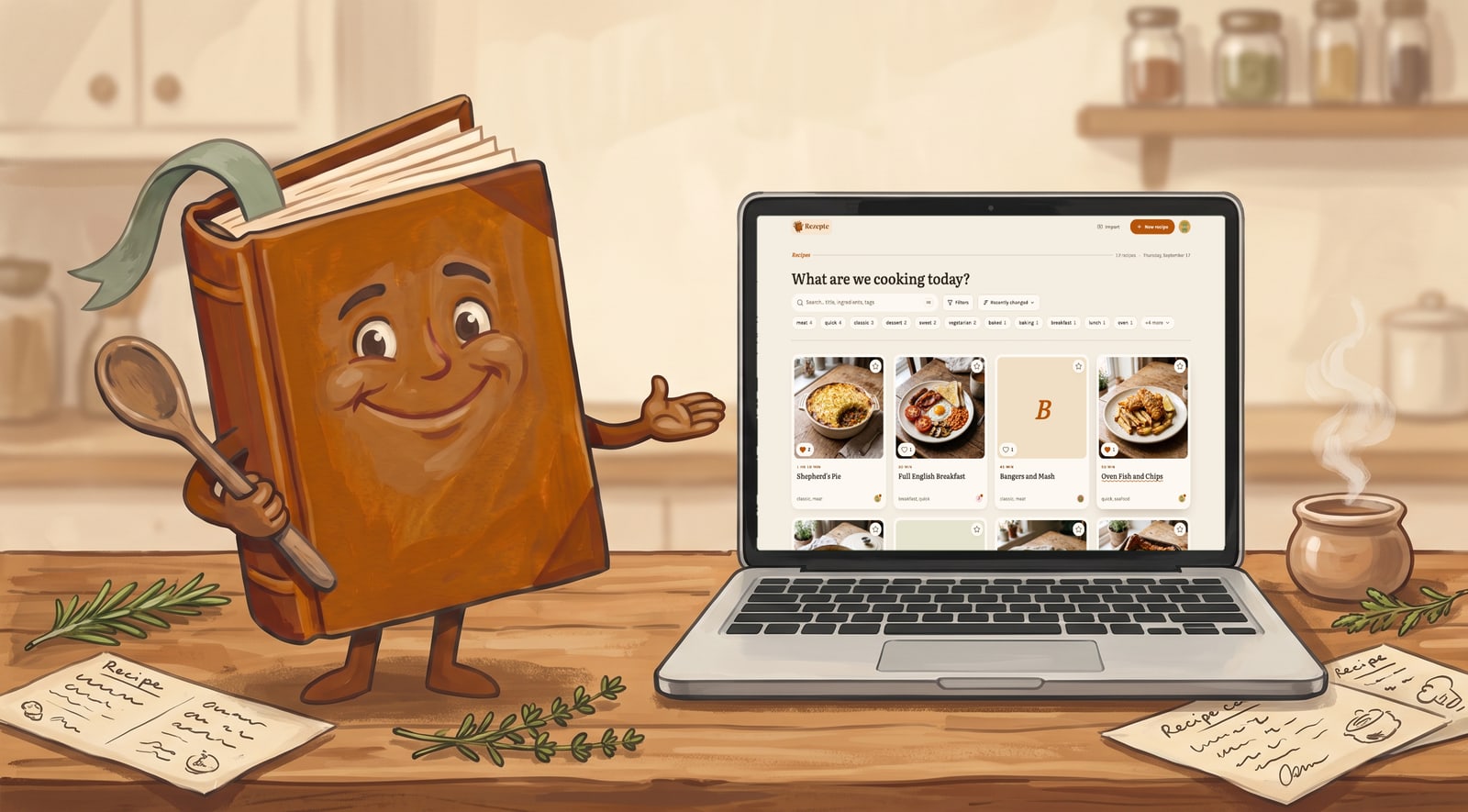
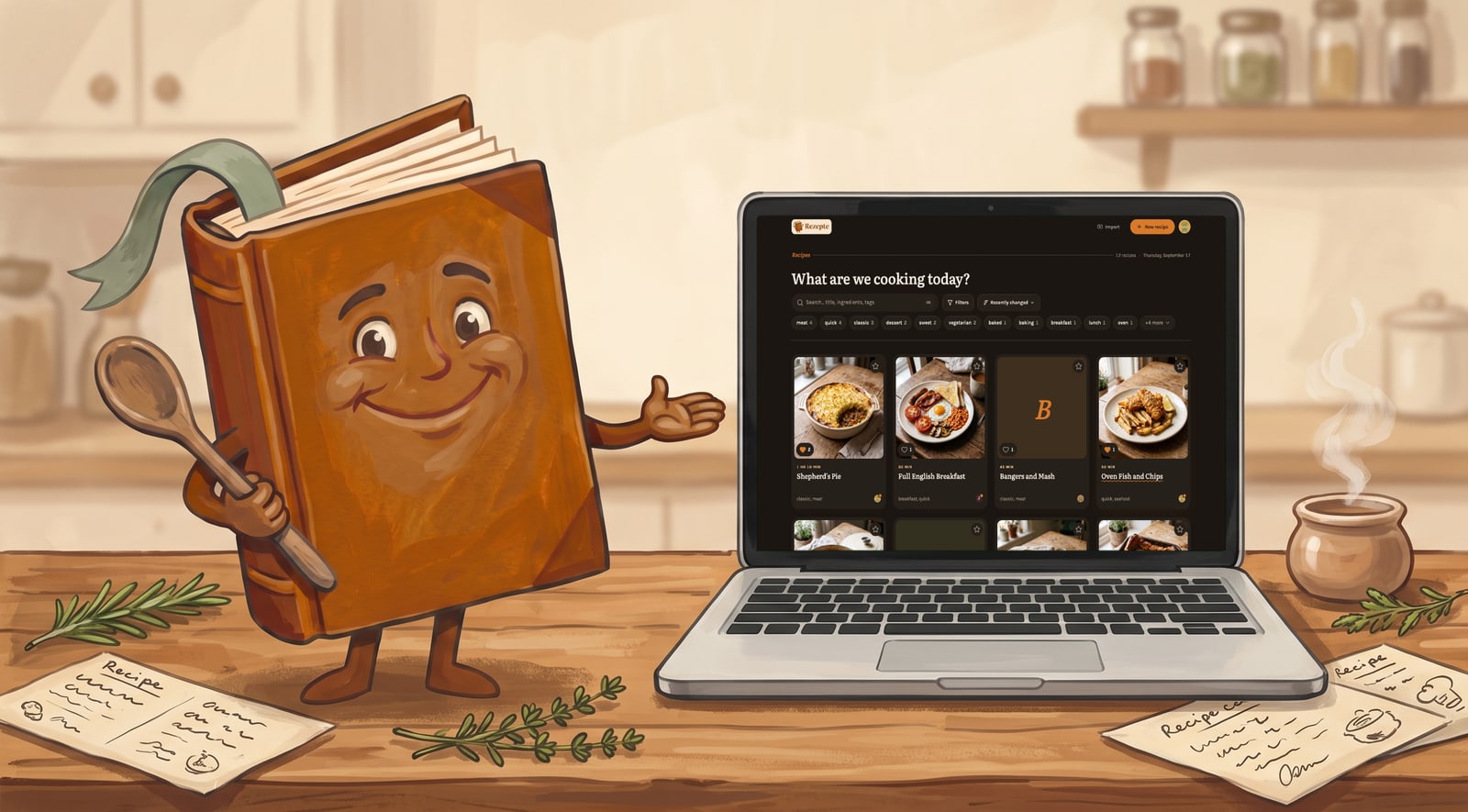
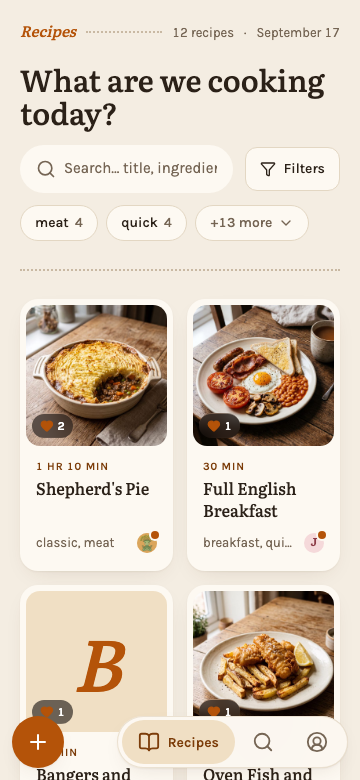
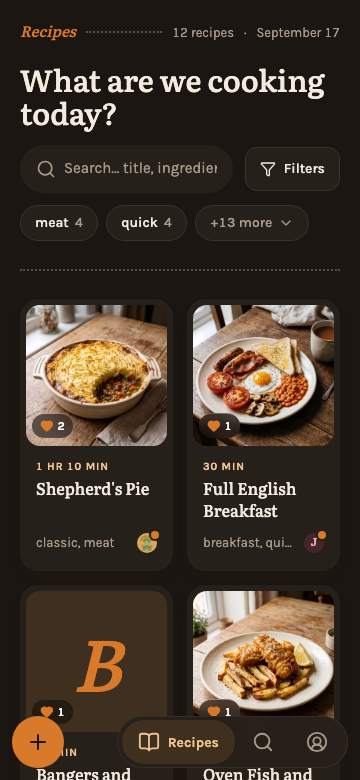
Person cards
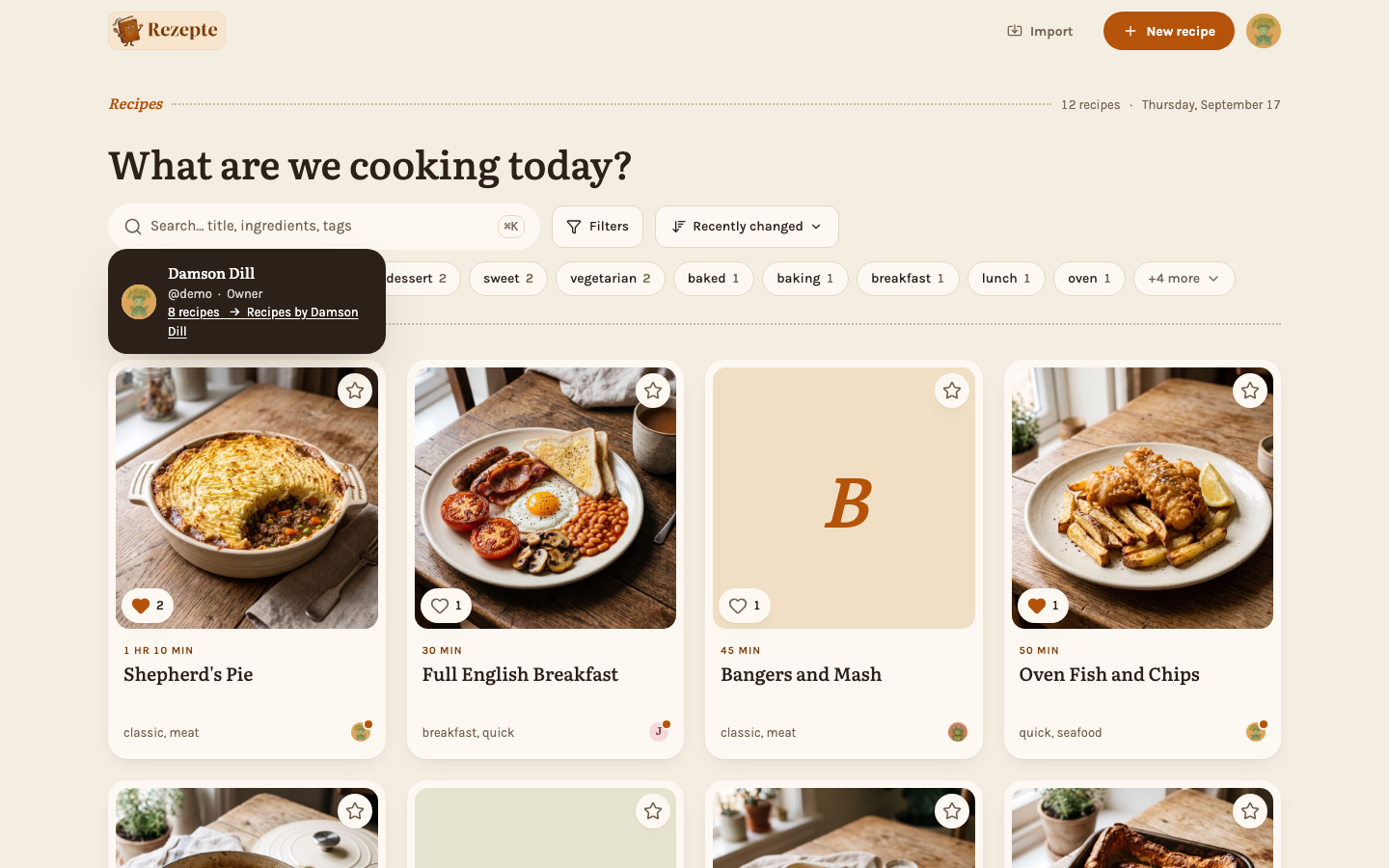
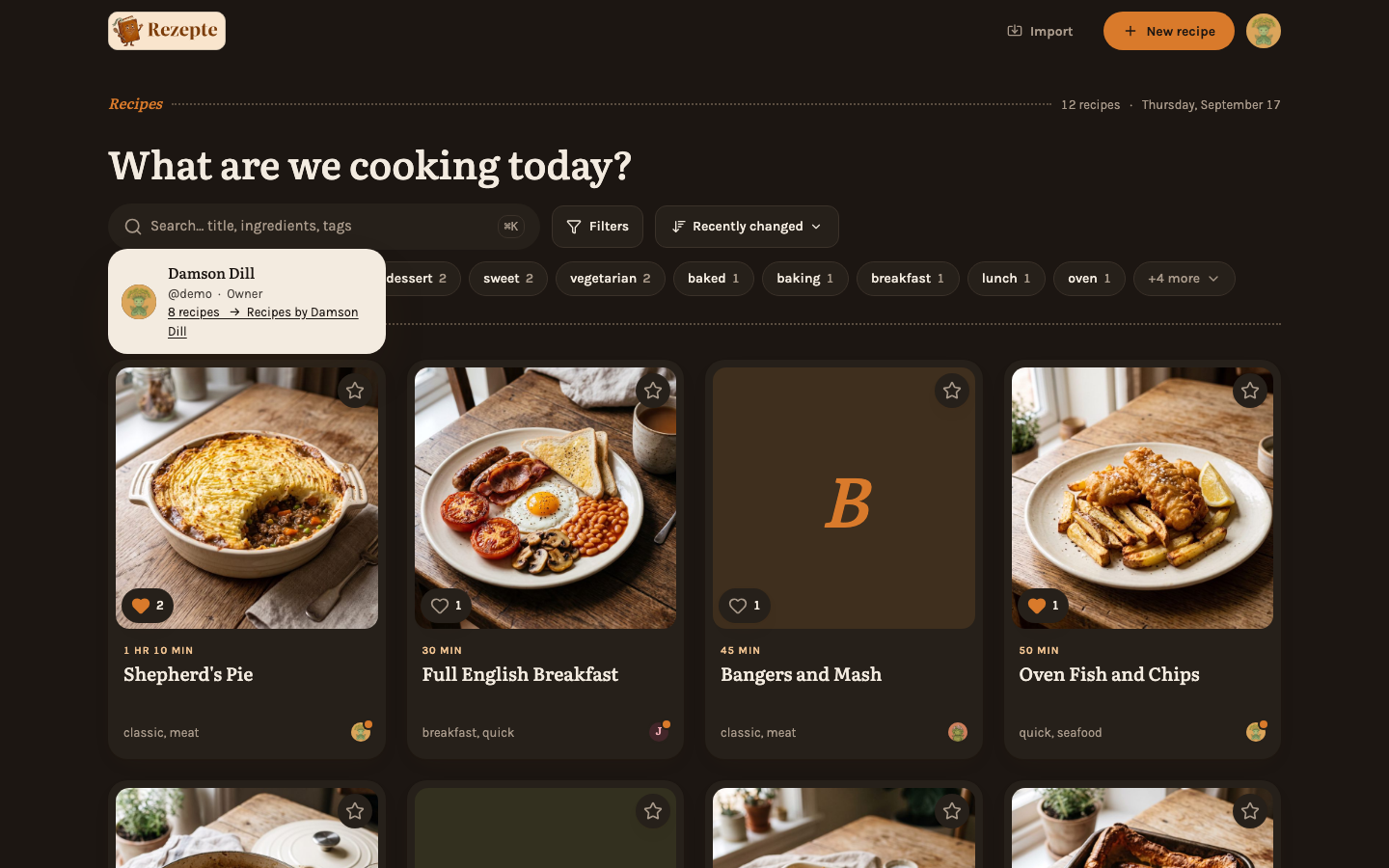
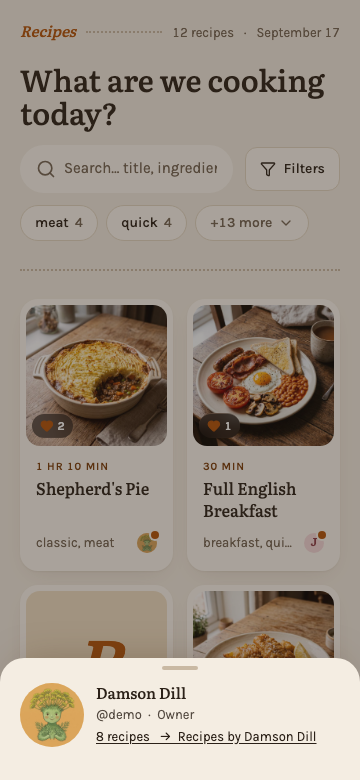
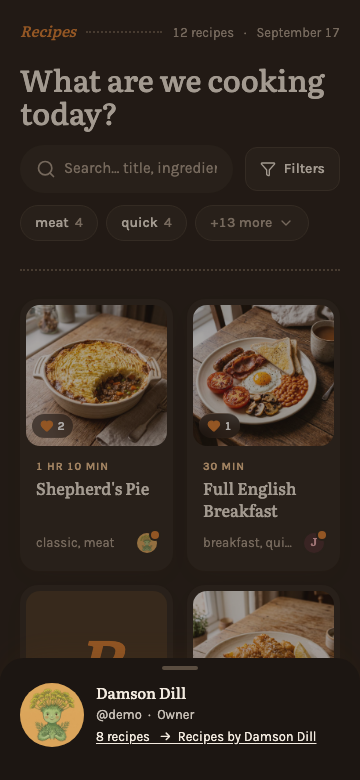
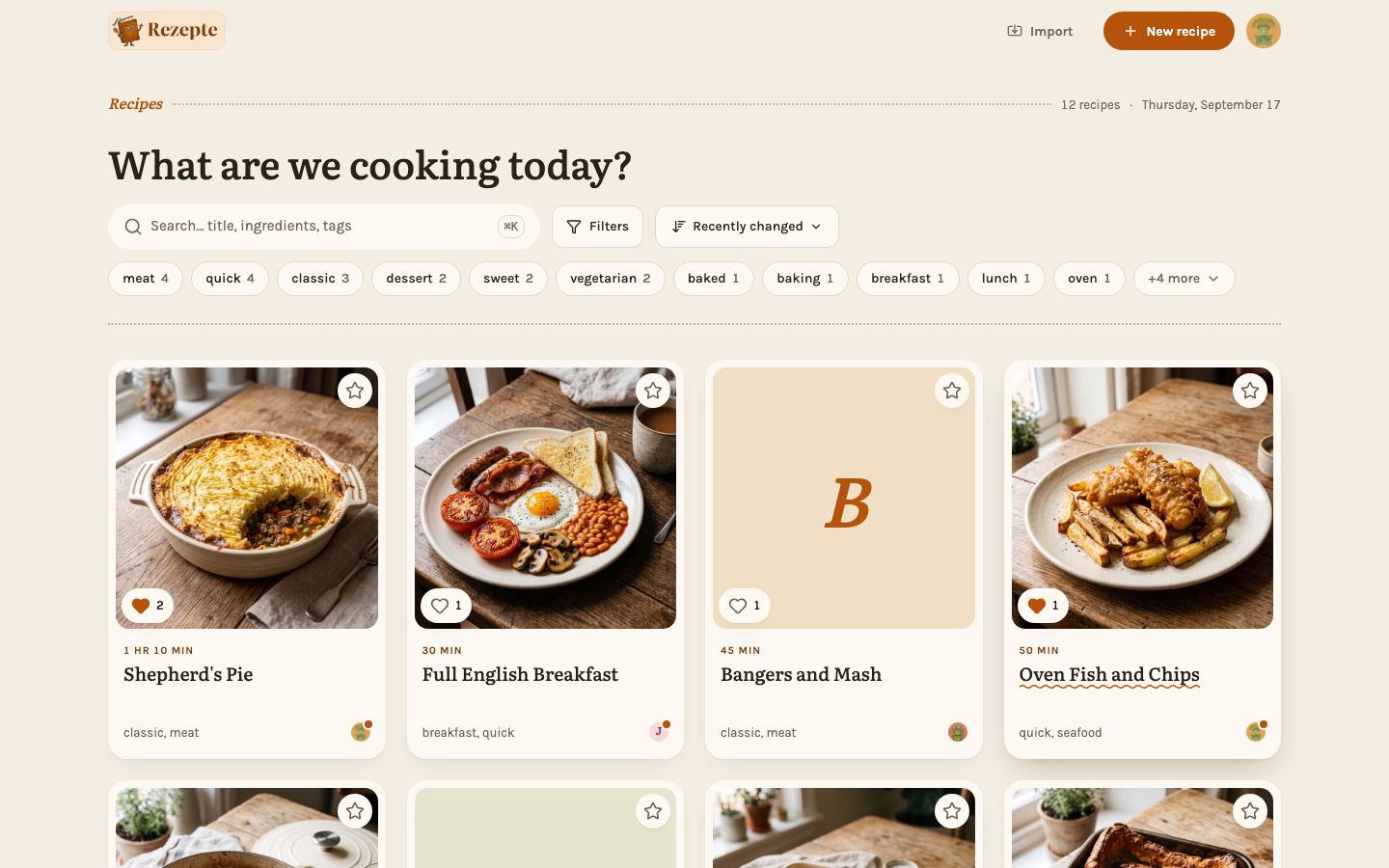
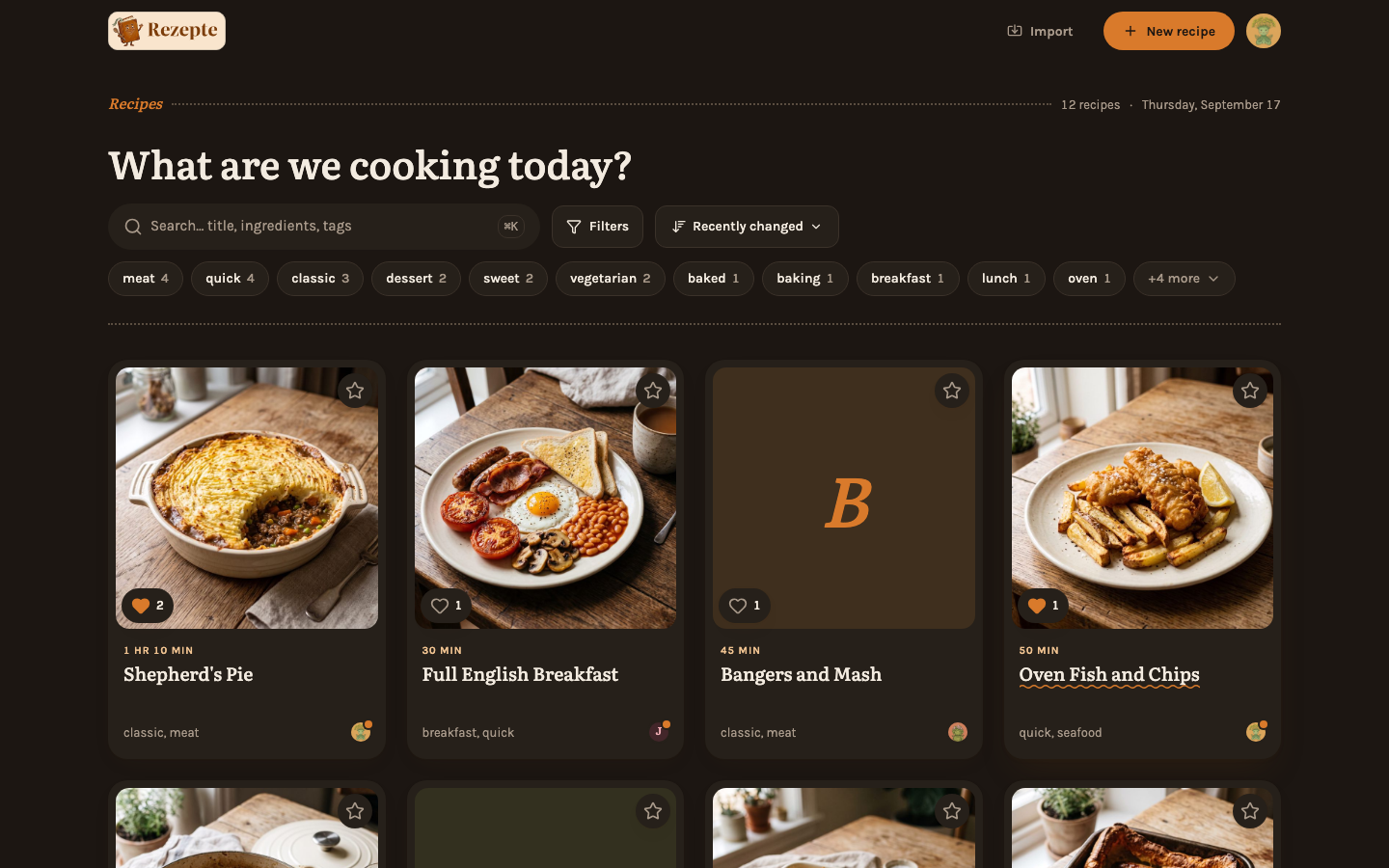
Every person circle opens a small person card: their photo, display name, login name and role, and "Recipes by …" with the number of recipes they wrote, which takes you to the overview narrowed to that person. You find the circles on recipe cards (who added and who last edited), on the faces of the people who marked a recipe tasty, and in the list of people under Settings. On a phone it opens as a sheet from the bottom of the screen, which you close by tapping the handle at its top or anywhere above it. The card is for a household to know who is who; a person without a photo shows their initial in their own color. Setting your photo is in Settings.
Getting around
On desktop, the top bar carries "Import", which takes a recipe from a link or copied text (Importing a recipe), "New recipe" and the "Account menu" (your initial, top right) with links to "Settings" and "Sign out". On a recipe, in the editor and in Settings, the top bar names the page next to the app's name, and the two buttons make way for what that page needs: a recipe's own "Edit", "Cook mode" and "More actions", or nothing at all in the editor and in Settings, which keep their actions on the page.
On a phone, the same actions move into a small bar at the bottom right: a book for "Recipes" (the overview), a magnifying glass for "Search", which opens the command palette, and a person, "You", a sheet showing who is signed in with "Profile", "API", "Shared links", "People" (and, for the owner, "Email"; for admins, "Import & export") and "Sign out". The round "+" at the bottom left asks how to start a new recipe: "Write it yourself" opens the editor, "Import" takes it from a link or copied text. While you scroll down to read, the bar shrinks to just the current icon; scroll back up or tap it to bring it back. The editor and Settings have a one-line head at the top instead of a sidebar: it names the section you are in, and tapping it opens "Contents", a sheet listing every section to jump to.
Settings
"Settings" has four pages, one more for the owner and one more for admins, listed in its sidebar (or its "Contents" sheet on a phone):
- Profile — your photo, display name, color and language, your email address (confirmed by mail), the theme, your password and a link to this guide. See Settings.
- API — the address of this instance's API and its documentation, and the address an AI assistant connects to; admins also issue API tokens here.
- Shared links — the public links you have created, to copy or revoke; admins see everyone's.
- People — everyone who has an account and their role; admins also manage the accounts here, and the owner sets the household's editing rights, public links and link previews. See People.
- EmailOwner only — the mail server Rezepte sends setup links, links for a new password and address confirmations through. See Mail.
- Import & exportAdmins only — pass recipes with their photos to another Rezepte. See Import and export.
"Sign out" sits at the foot of the same list, set apart from the pages.
Who a page is for
Most of this guide is for everyone with an account. A page or a section that is not carries a badge beside its title or its heading:
- Admins only
- Admins only — for admins, the instance owner included
- Owner only
- Owner only — for the instance owner alone, the account created on the very first start
Command palette
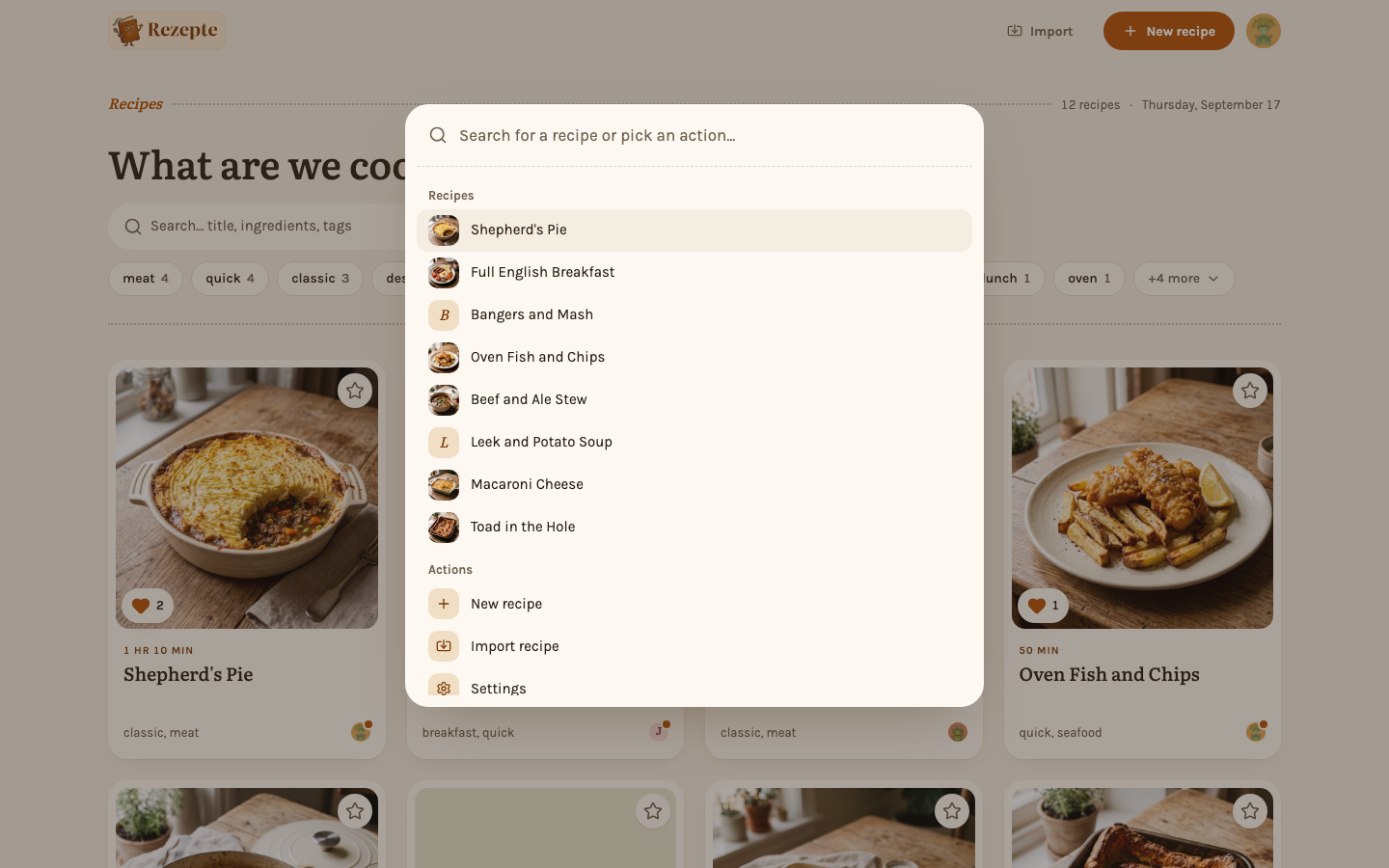
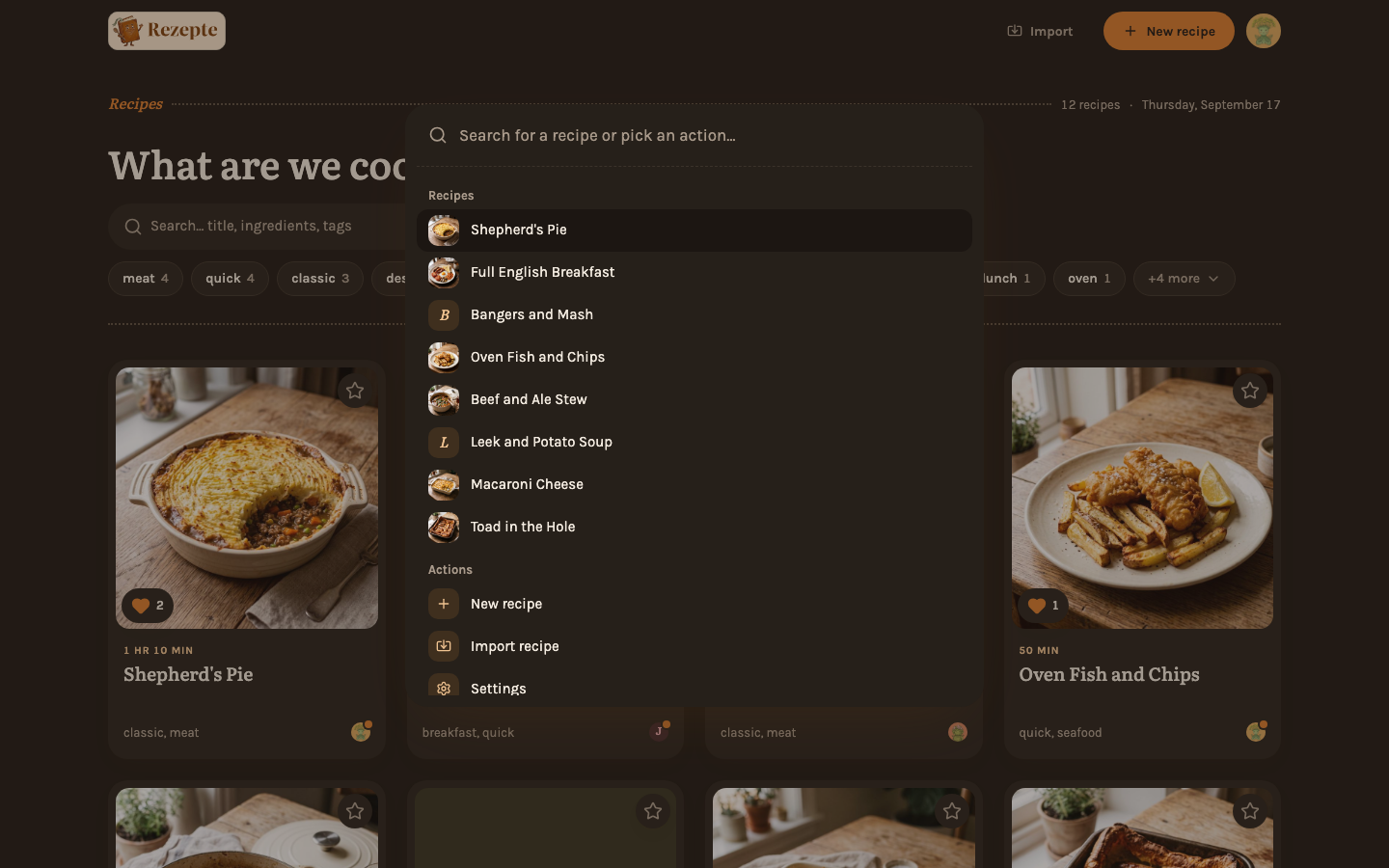
Press ⌘K (macOS) or Ctrl+K (everywhere else) anywhere except the login page and cook mode, or on a wide screen click the palette button at the end of the search bar, to open the command palette; on a phone, tap "Search" in the bottom bar. It jumps straight to a recipe by name, or runs "New recipe", "Import recipe" and "Settings" without leaving the keyboard. Once you have typed something, "All results for …" opens the overview with that search, where the filters and every match are.
Feature pages
Recipes
Create, edit and delete recipes: ingredients, steps, tags, favorites and tasty marks.
Comments
Write down what you learned cooking a recipe, edit or delete it, and see which comments are new.
Importing a recipe
Turn a recipe from a website or from copied text into a draft, check it and save it.
Photos
Upload, reorder and remove recipe photos; the cover and the lightbox.
Tags and search
Find recipes by text and tags; filter by time, favorites and author, and sort the list.
Servings
Scale ingredient quantities to any number of servings and copy a shopping list.
Cook mode
A full-screen, step-by-step view for cooking at the stove.
People
See who has an account; admins add, reset and delete accounts, and the owner assigns roles and edits profiles.
Let Rezepte mail setup links, links for a new password and address confirmations; the owner sets up the mail server.
Editing rights
Who may change, re-photograph and delete a recipe.
Sharing recipes
Send a recipe link to the household, the chat preview, and public links for people outside it.
Settings
Your profile, color and language, theme, password, the API tab and help.
Keyboard shortcuts
Every shortcut the app defines, in one table.