Settings
Your profile, color and language, password, theme, help, API and signing out
Profile
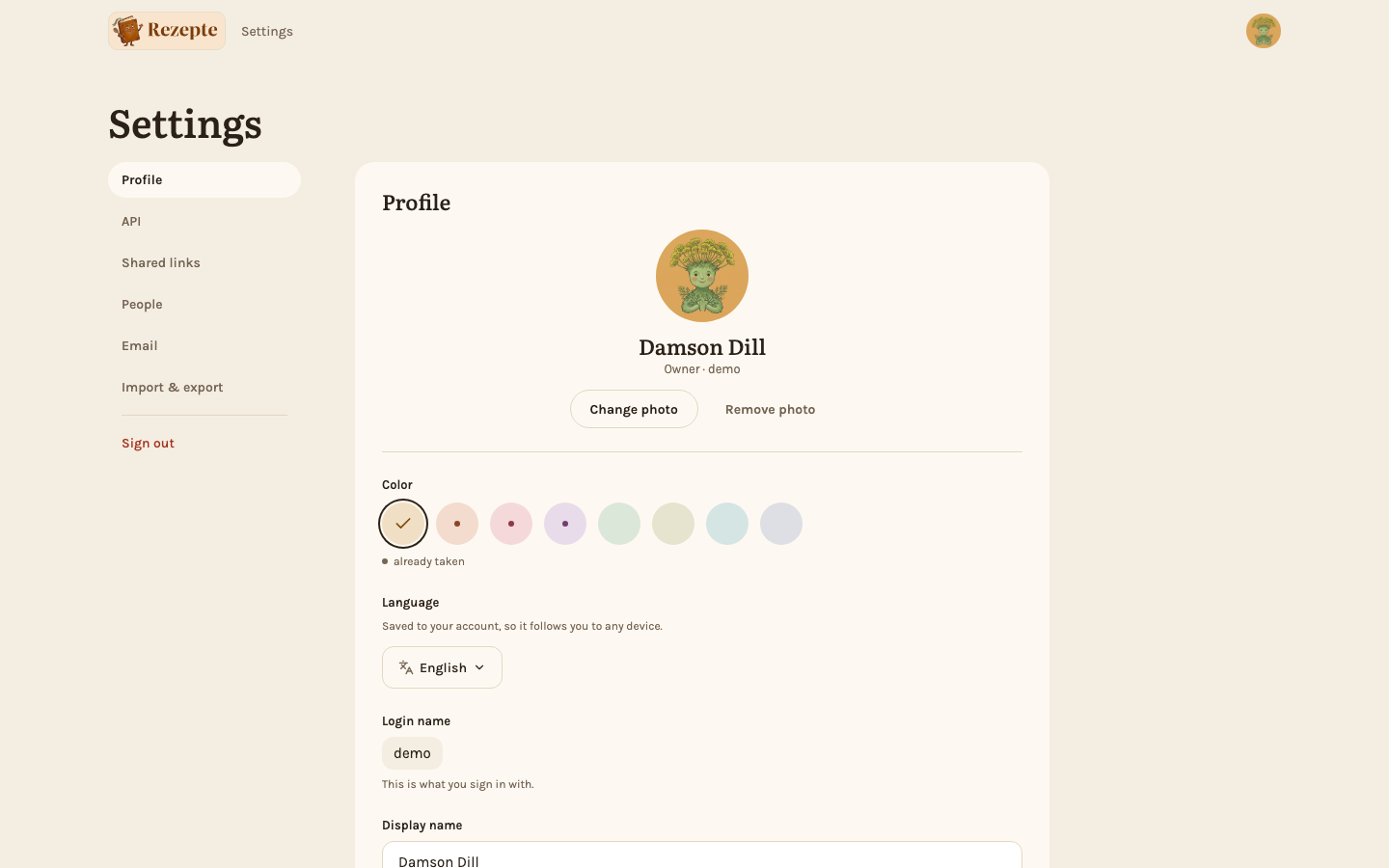
The card at the top of the page is how Rezepte shows you to the household. It opens with your circle — your photo if you added one, otherwise your initial in your color — above your display name and your role.
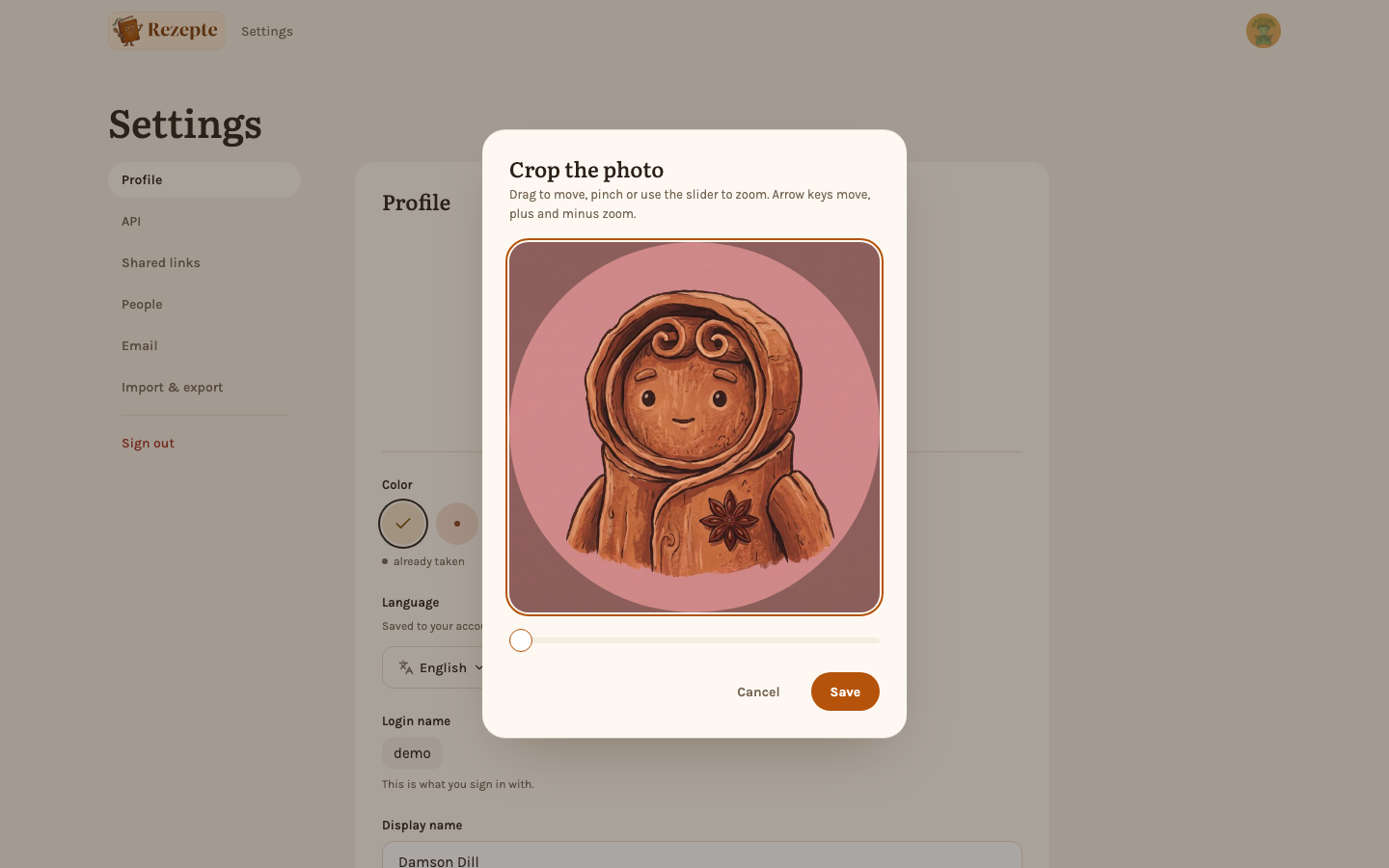
"Add photo" (or "Change photo" once you have one) opens a file picker for a JPEG, PNG or WebP of up to 10 MiB. The photo then appears in a round frame to place: drag it to move, use the slider, a pinch or the mouse wheel to zoom in to four times, or use the arrow keys to move and plus and minus to zoom. Confirm, and the round section you framed becomes your photo, here and wherever Rezepte shows you — on the recipes you added, in the list of people and in your person card (see Tour of the app). The photo is cut from the file you chose, so to frame it differently, choose the file again. A photo, or a framed section, smaller than about 64 pixels is refused with a message. "Remove photo" takes it off and puts your initial back.
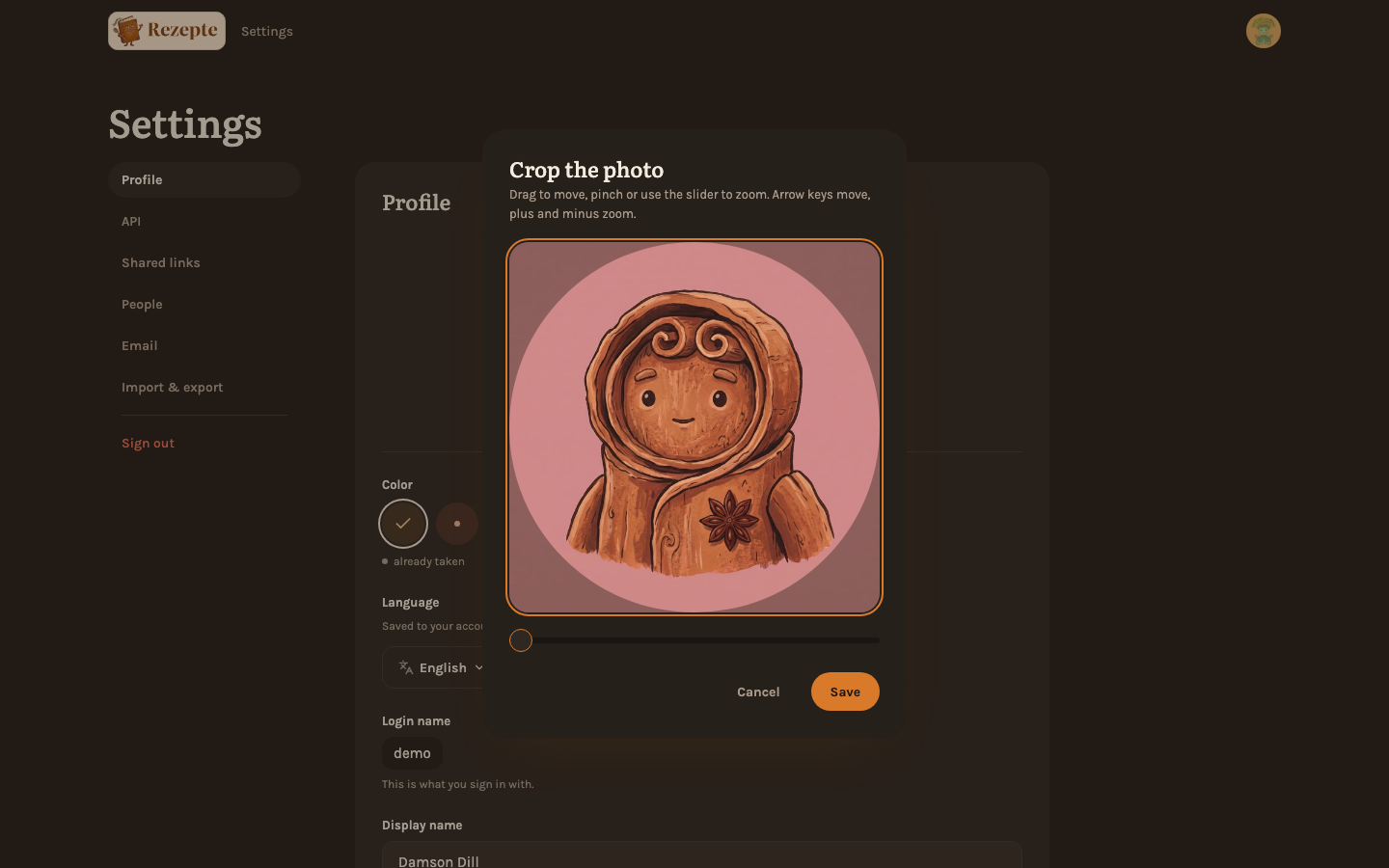
If a photo is missing or cannot be loaded, Rezepte shows your initial in your color instead. Your color and initial still identify you, so nobody has to recognize a face to know whose recipe it is.
"Color" is your color: eight to choose from, and it marks you wherever the app names you. Tapping a swatch saves it right away, no button. A small dot marks a color somebody else already has — you can take it anyway, the dot is only there so a household can spread out across the palette. Your initial stays in the circle either way, so nobody has to tell two colors apart to know whose recipe it is.
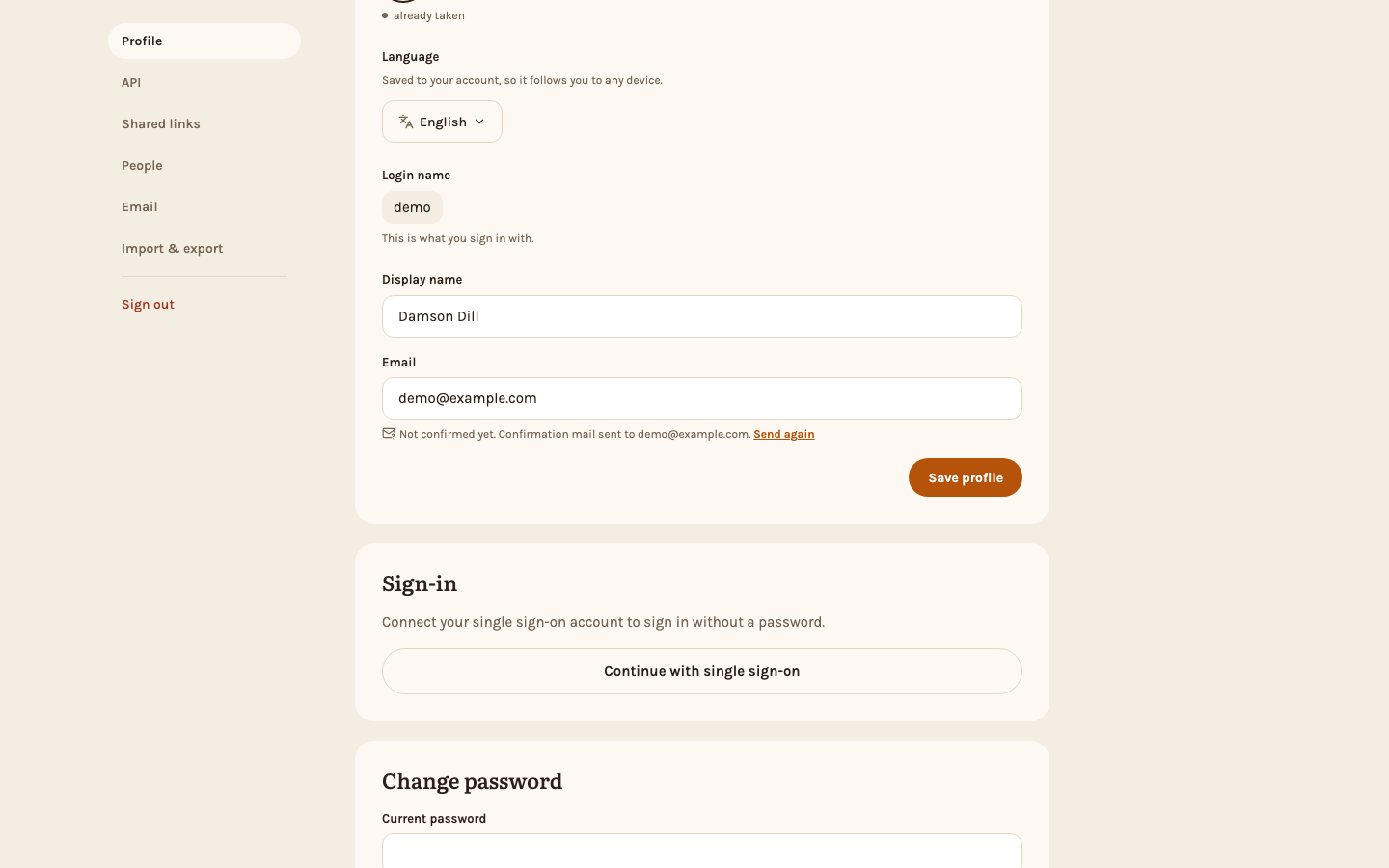
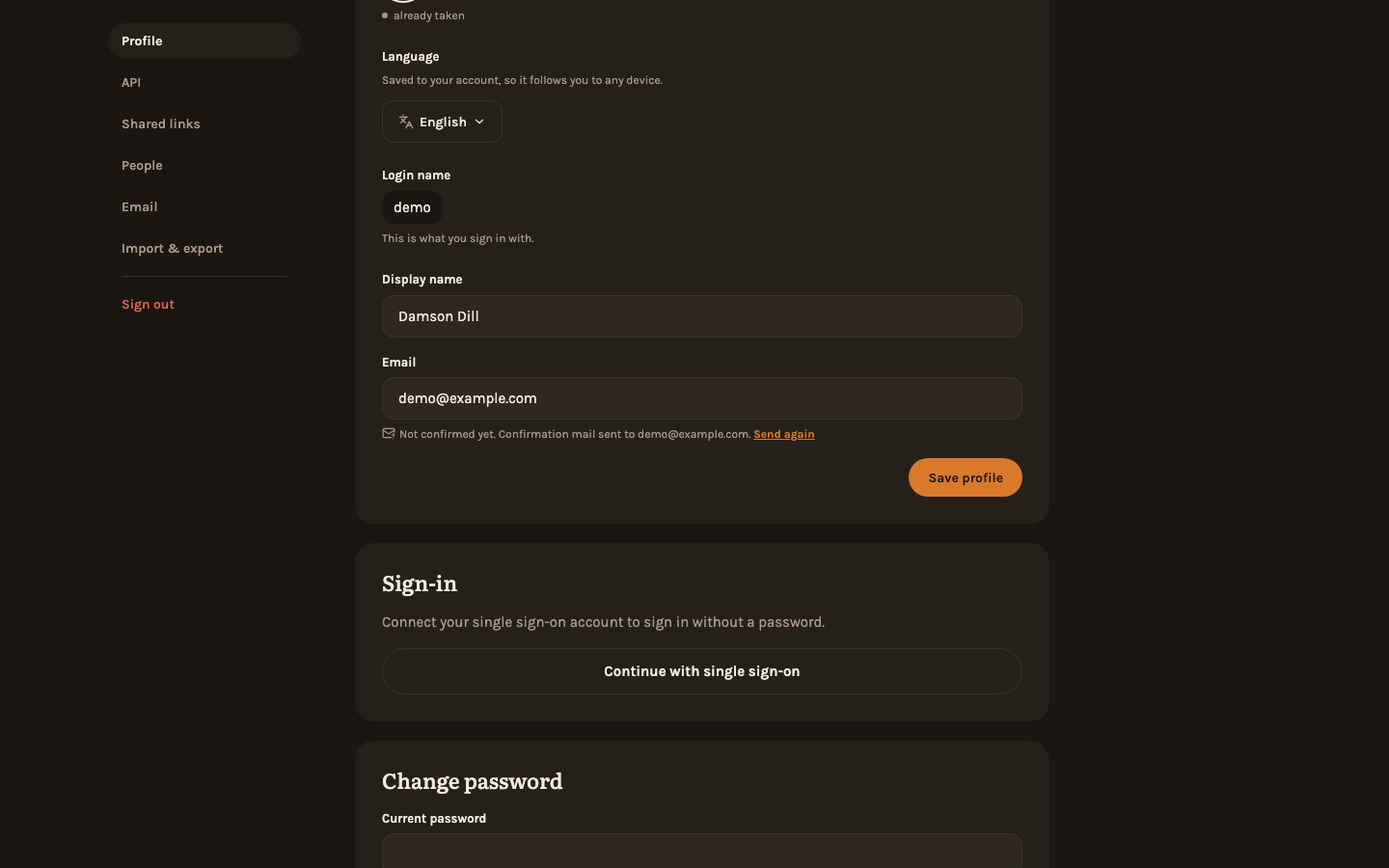
"Language" is "English" or "German", and picking one reloads the page into it. It is saved to your account rather than to this browser, so it follows you to any device you sign in from — the next login, anywhere, opens in that language. It changes the interface only; it never translates a recipe's own title, ingredients or steps, and it does not touch the language the recipes were written in. Missing your language? See Add a language.
"Login name" is what you type to sign in. It is shown, not editable, and it stays the same however often you rename yourself.
"Display name" is the name on your recipes, in the list of people and on the circles that sign a recipe card. Change it and press "Save profile"; up to 64 characters, and leaving it empty puts your login name back. It does not have to be unique, so two people can both be "Mia".
"Email" is optional and never used to sign in. It is where Rezepte sends a link when you forget your password, but only once it is confirmed: after you save a new address, Rezepte mails a confirmation link to it (when mail is set up). Until you open it, the field says Not confirmed yet with Send again; once you have, it says Confirmed. Send again works once a minute, and saving the address counts as the first send. A link that was used already or has expired says so, with Go to your profile to come back here and send a new one, or Sign in first when you are signed out. An address your identity provider vouched for counts as confirmed. Leave the field empty or clear it again with "Save profile".
Sign-in
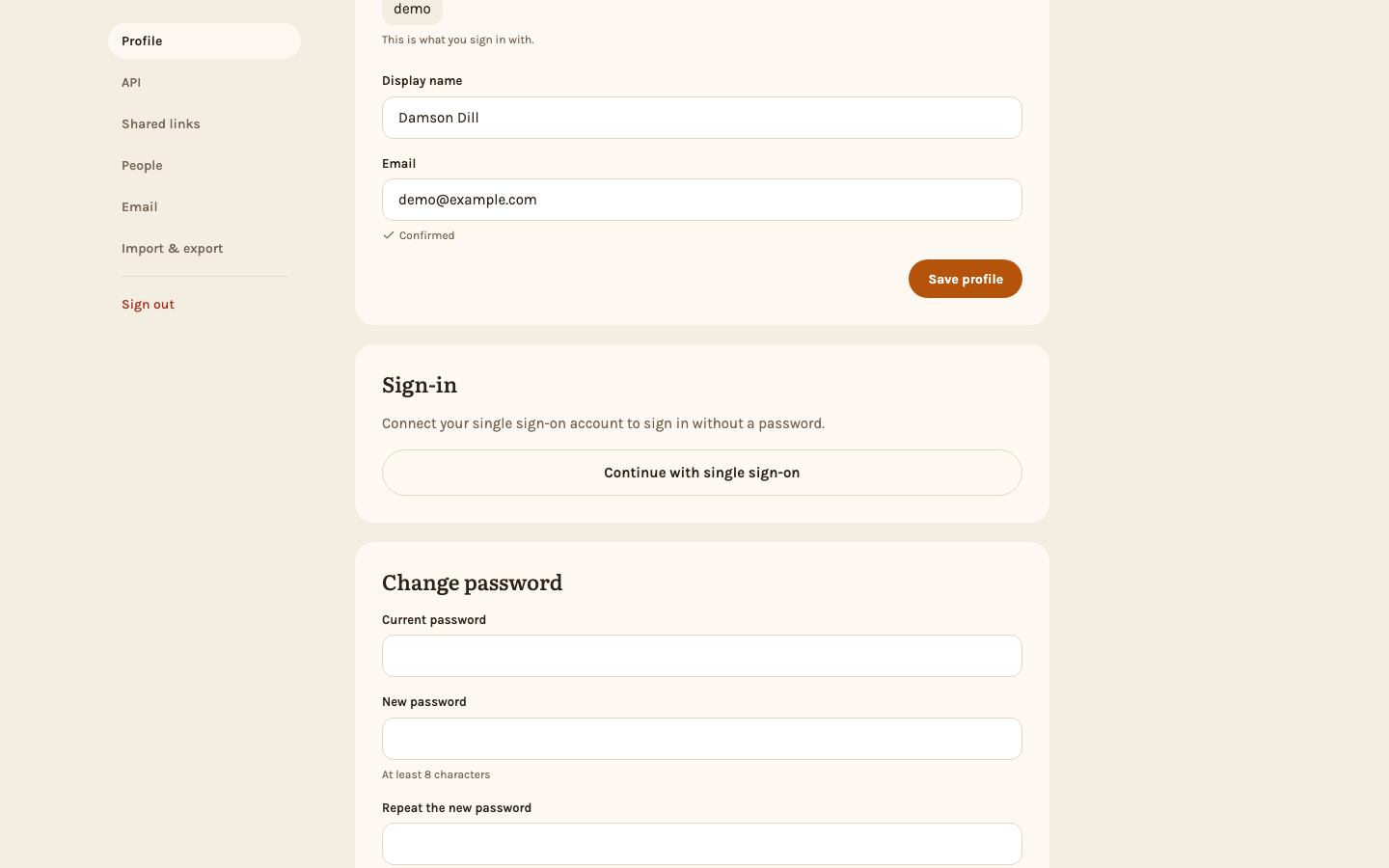
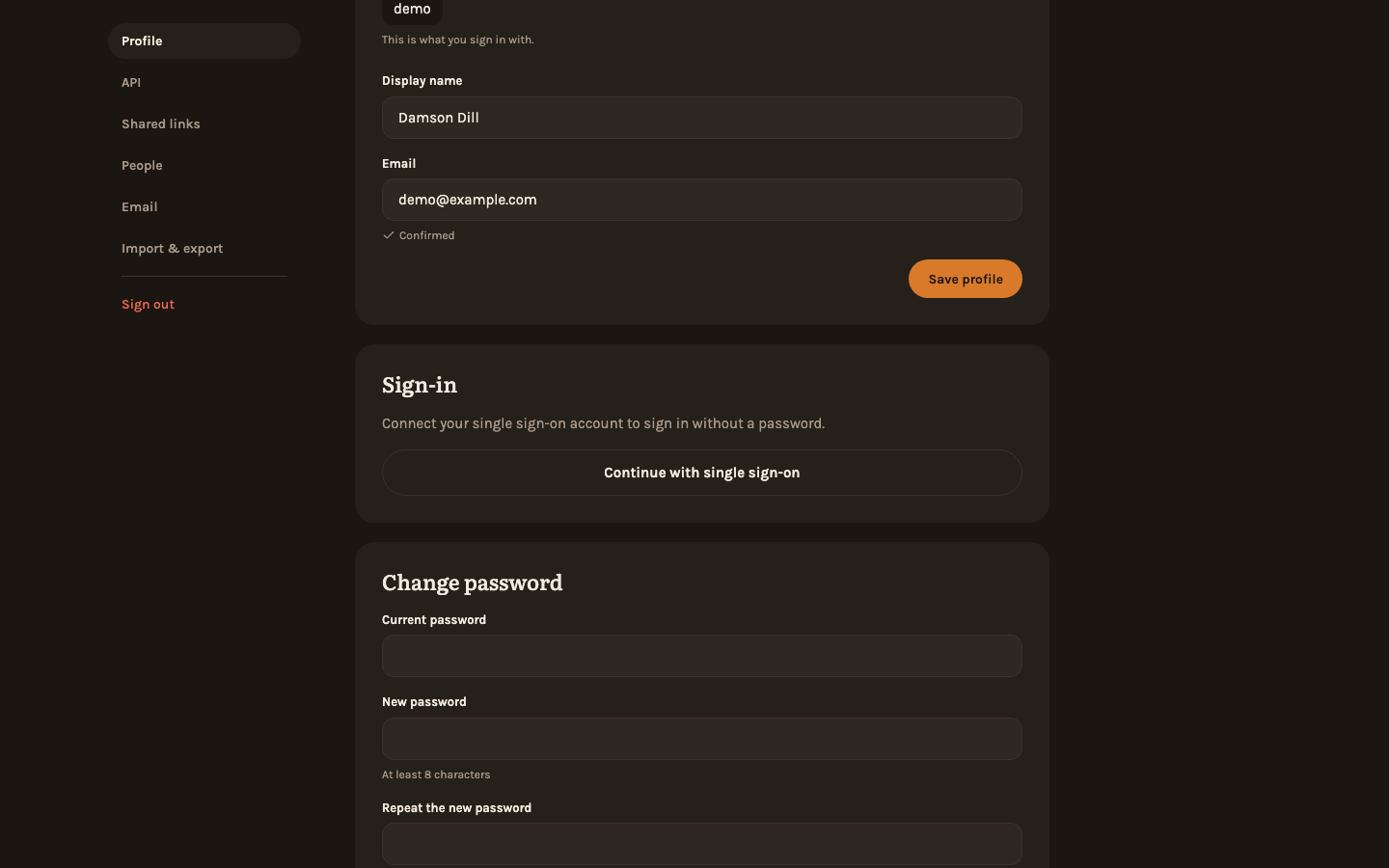
This card is there only when your instance offers sign-in through an identity provider such as Google (see Single sign-on). "Continue with …" takes you to the provider and back; from then on the same button on the login page signs you in without a password. Once connected, the card says since when, and "Disconnect" undoes it and signs you out on your other devices — but only while your account also has a password, because without one you could no longer sign in at all. Set a password below first.
Change password
Enter the current password once, then the new password (8–128 characters) twice. Changing your password signs out every other device that was logged in as you; this device stays signed in.
While you type the new password, a bar below it rates it from "very weak" to "strong". It knows the most common leaked passwords, keyboard runs like qwertz and your own names, so anna1990 counts as weak for Anna. The rating is advice: any password of the right length can be saved. A password manager's generated password is the easy way to "strong".
Appearance
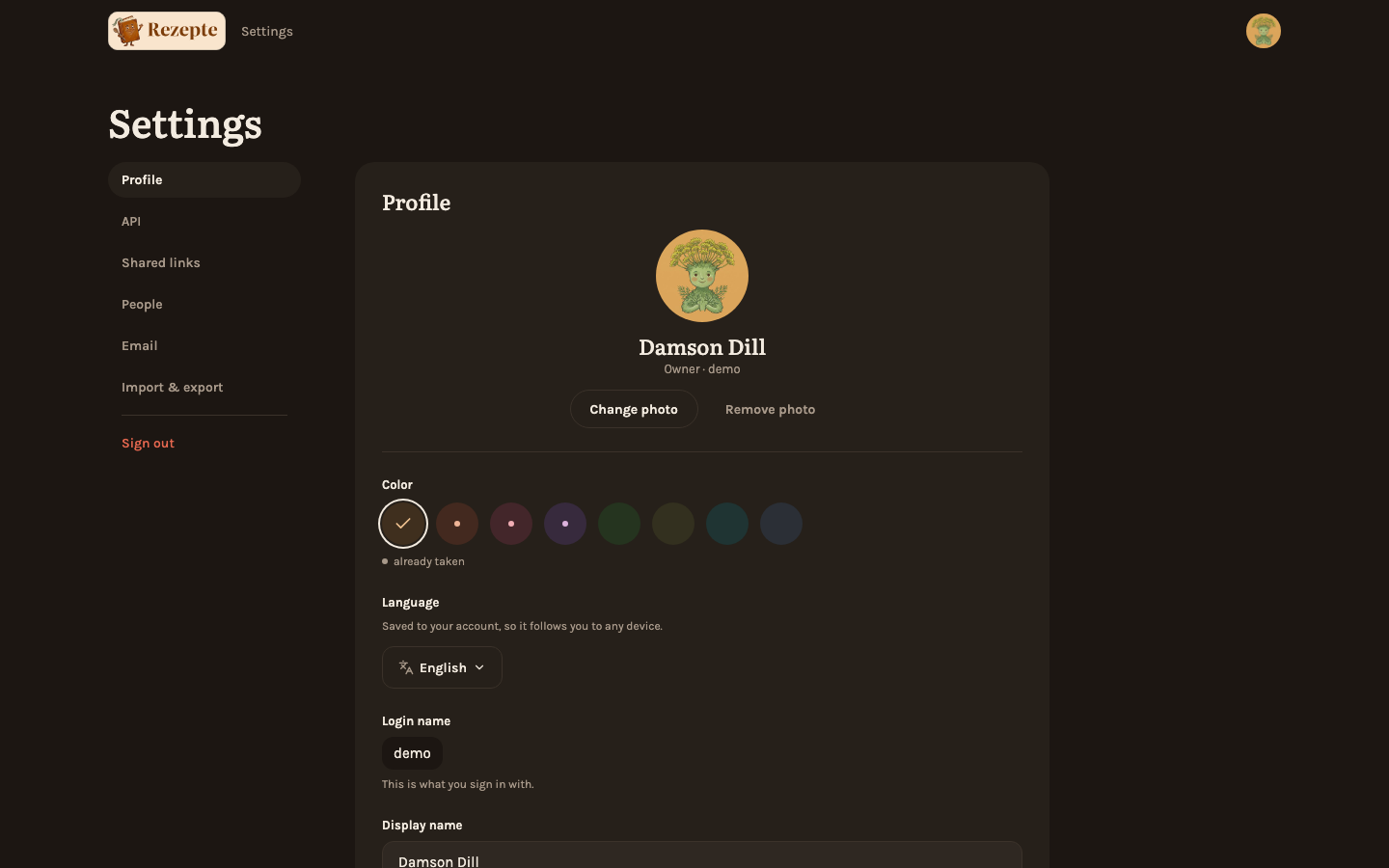
Choose "System", "Light" or "Dark". The same choice sits in the account menu behind your initial at the top right, and on a phone in the "You" sheet, so you do not need to open the settings for it. Unlike your language, the theme is stored in this browser only — it does not follow you to another device or browser.
Help
The "Help & guide" card opens this guide in a new tab. It is the way here from inside the app whenever something is unclear.
About Rezepte
The last card on the page says which version of Rezepte your instance runs, and links to its source code and to the Changelog — handy when you ask for help or wonder what an update brought.
API
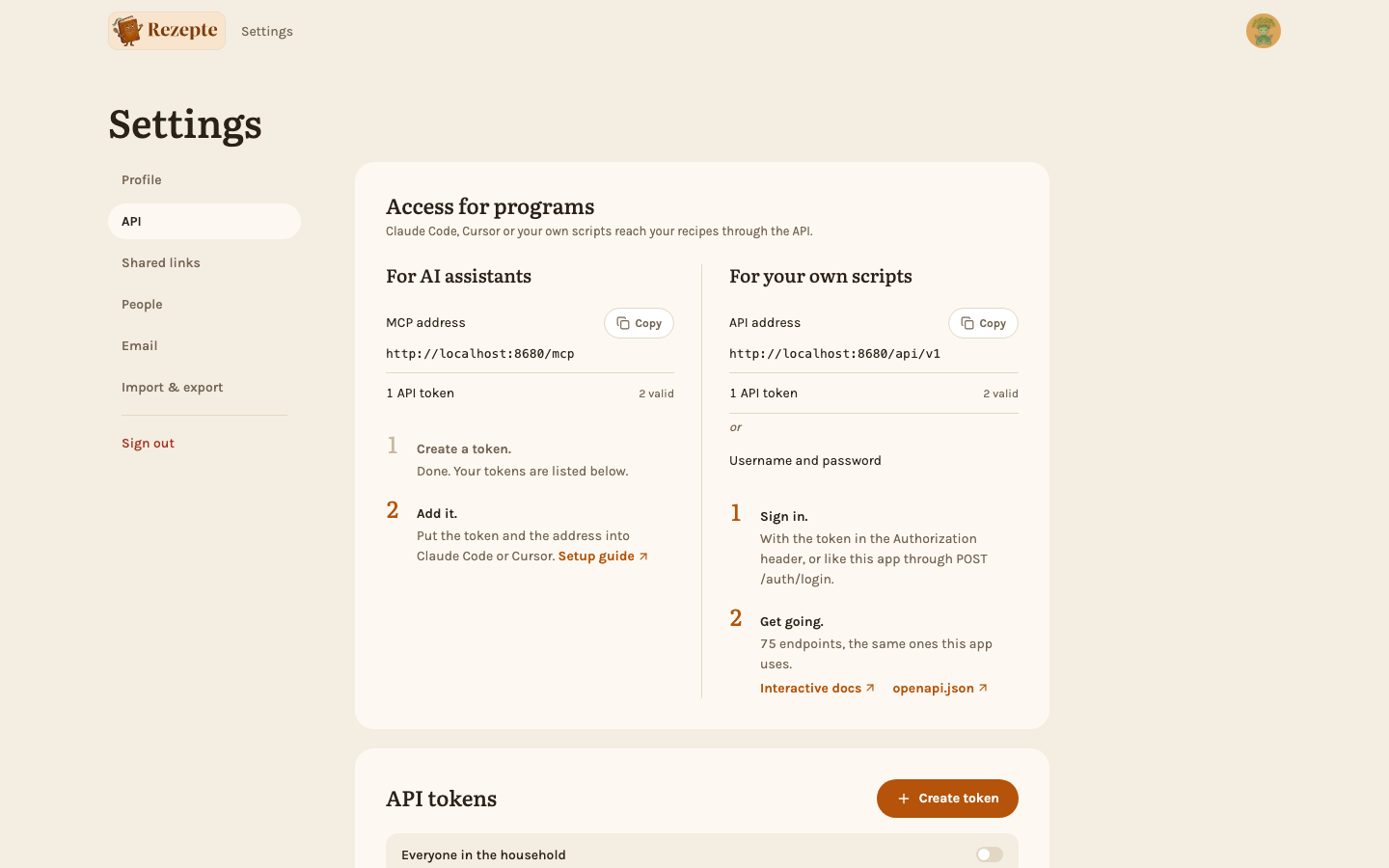
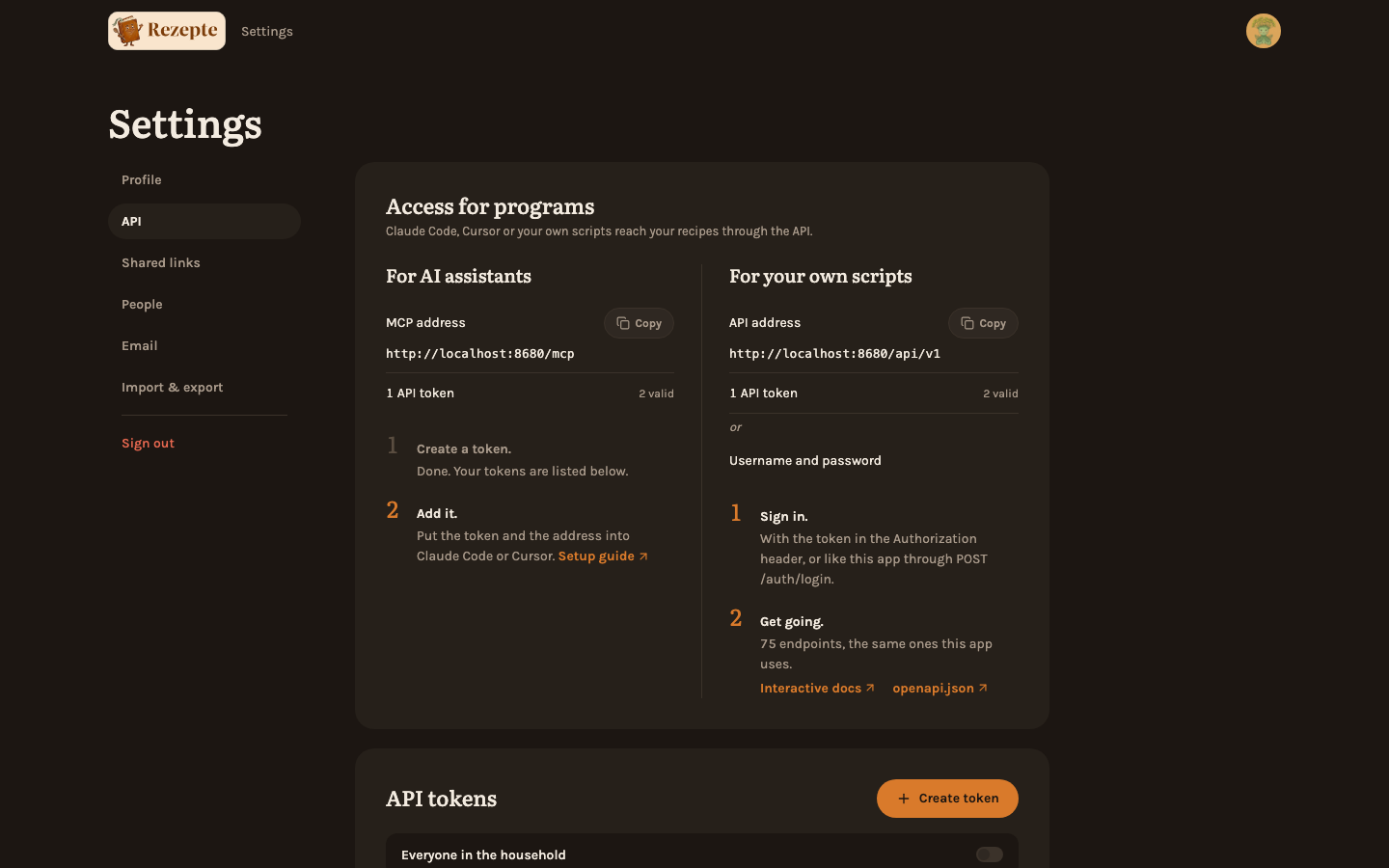
Every signed-in member has this tab. Its "Access for programs" card reads like a cookbook page with two recipes, each with its ingredients and its steps:
- For AI assistants — the MCP address an assistant such as Claude Code connects to, and an API token. Step one points to the "API tokens" card where you create the token (or, if you are not an admin, says who can issue one); "Setup guide" opens Connect an AI assistant.
- For your own scripts — the base URL of this instance's API, and either a token or your username and password: a script may also sign in the way the app does. "Interactive docs" opens the try-it-out documentation, "openapi.json" the raw document — both work straight from the browser with your session, no token needed. See API for what you can do with it.
Both addresses have a "Copy" button. Admins find the "API tokens" card below, with "Create token" and their own tokens — or, with "Everyone in the household" switched on, every admin's. Once they hold a valid token, step one is marked done. API tokens covers it.
Shared links
Every signed-in member has a "Shared links" tab: the public links you have created, across every recipe, with their status and Copy and Revoke for each — see Public links. You can narrow the list by status. Admins can also switch to everyone's links there, narrow them to one person, and revoke them all.
EmailOwner only
The owner has an "Email" tab, between "People" and "Import & export", for the mail server Rezepte sends its mail through: setup links, links for a new password and address confirmations — see Mail.
Import and exportAdmins only
Admins have one more tab, "Import & export", for passing recipes with their photos to another Rezepte — see Import and export.
Signing out
"Sign out" ends the current session on this device. You find it in the "Account menu" (your initial, top right on desktop) and at the foot of the Settings sidebar; on a phone, in the "You" sheet of the bottom bar and at the foot of the Settings "Contents" sheet.
The instance owner can change another person's display name, color and photo from the list under "People"; nobody else can. See People for that and the rest of the account management admins do there. The owner also finds the household's Recipe editing setting there (see Editing rights), Link previews and Public sharing (see Sharing recipes).