
People
See who has an account; admins add, reset and delete accounts, and the owner assigns roles and edits profiles
Everyone with an account finds "People" in Settings: a list of every account on this Rezepte, with its display name, its login name, its color and its role, so it is always clear who takes part and who looks after the accounts. A "Member" account reads the list and nothing more; the actions on this page are for admins.
Admins are not all equal here. Every admin looks after the members; admins themselves belong to the instance owner — the account created on the very first start (see First login). Actions you are not allowed to take are simply not shown in the row, so the list already reflects this table:
| Member | Admin | Owner | |
|---|---|---|---|
| Cook, add recipes, edit and delete your own | ✓ | ✓ | ✓ |
| Edit someone else's recipe and its photos | if open | ✓ | ✓ |
| Delete someone else's recipe, or change who may edit it | – | ✓ | ✓ |
| Lock recipes to their authors for the whole household | – | – | ✓ |
| Change your own password | ✓ | ✓ | ✓ |
| Change your own display name, color and photo | ✓ | ✓ | ✓ |
| See everyone who has an account, and their role | ✓ | ✓ | ✓ |
| Add a member, reset a member's password, delete a member | – | ✓ | ✓ |
| Set a member's email address, send a member a setup link by mail | – | ✓ | ✓ |
| Disconnect a member's single sign-on | – | ✓ | ✓ |
| Add an admin, reset an admin's password, delete an admin | – | – | ✓ |
| Set an admin's email address, send an admin a setup link by mail | – | – | ✓ |
| Disconnect an admin's single sign-on | – | – | ✓ |
| Hand out the "Admin" role or take it back | – | – | ✓ |
| Change someone else's display name, color or photo | – | – | ✓ |
| Issue API tokens | – | ✓ | ✓ |
| Withdraw or restore a member's right to share publicly | – | ✓ | ✓ |
| Withdraw or restore an admin's right to share publicly | – | – | ✓ |
| Turn public links on or off for the household, and set their lifetime | – | – | ✓ |
| Delete or demote the Owner, or reset their password | – | – | – |
| Delete your own account | – | – | – |
There is exactly one Owner and it never changes: the role cannot be handed to anyone, which is why "Owner" is not offered when you create an account or change a role.
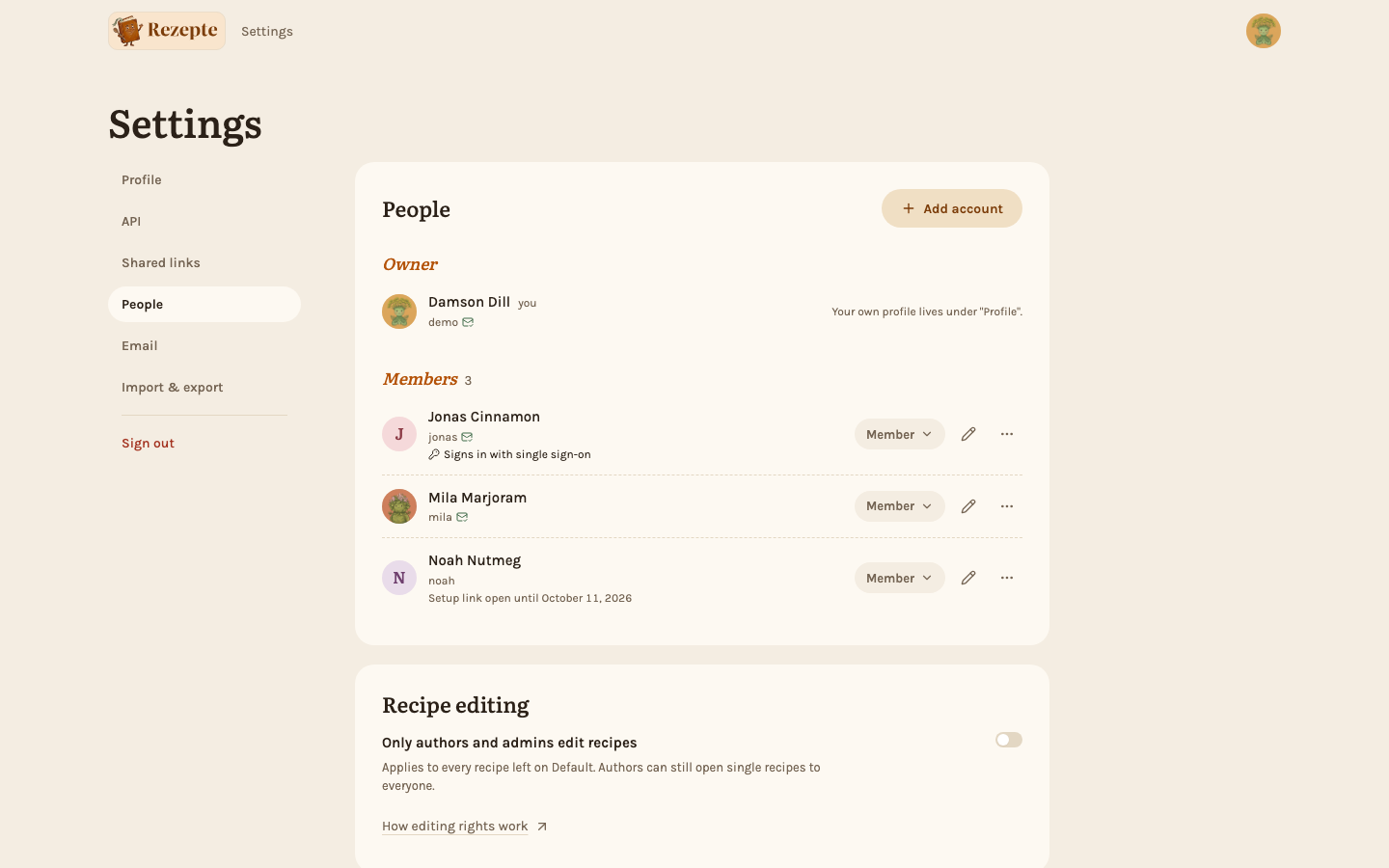
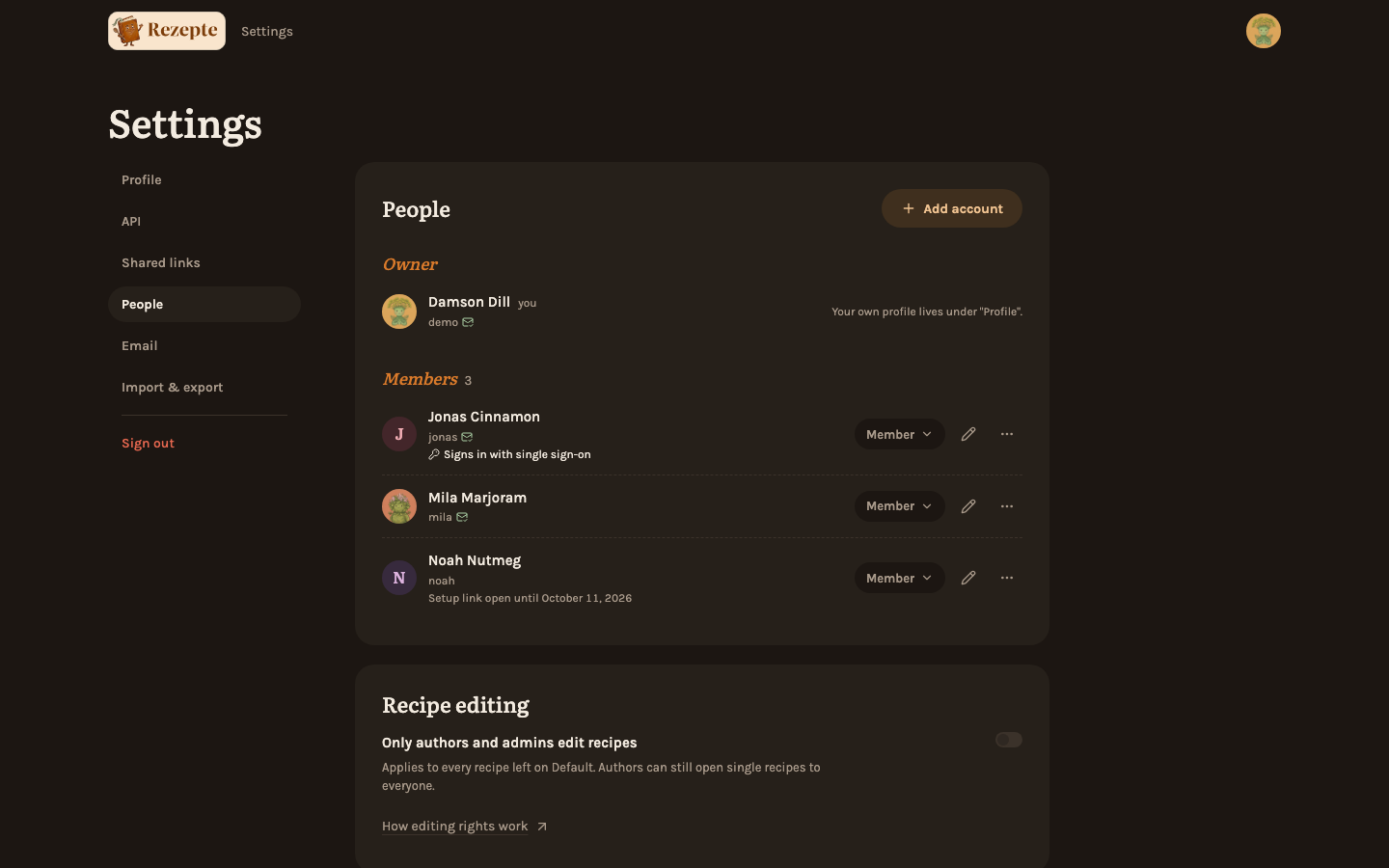
A small envelope after a login name shows the state of that person's address: a green check when it is confirmed, so a forgotten-password mail can reach it (except the owner's, and someone who signs in only through a provider gets a hint instead of a link); a question mark while it is not. No envelope means no address. On a phone the person's sheet says it in words. How to change an address is under Change someone's name, color, photo or email address.
Open the list
Go to "Settings" → "People". Everyone is listed under their role — "Owner" first, then "Admins", then "Members", with the number of people beside the last two — and by name within each group. Each person shows their display name and, under it, the login name; someone signed in through single sign-on also shows which provider, and someone with an open setup link shows when it expires.
Everyone's circle shows their photo, or their initial in their color if they have none. On a wide screen, click a person's circle to open their person card: name, login name, role and a link to the recipes they wrote. On a phone, the card is at the top of the sheet a row opens, so an admin sees it for every person they may act on; the owner's row and, for a Member, every row but their own open no sheet, and there the card is not shown.
On a wide screen the role select and the pencil (where there is one) sit at the end of each row, and a "..." menu next to them holds everything else you may do with that account. On a phone, tap a person to open a sheet with their actions; rows with a small arrow are the ones that open something, and your own row takes you to your profile.
Add an account
Click "Add account", type a username and pick a role — the fields you cannot leave empty carry a * — then choose how the person gets in.
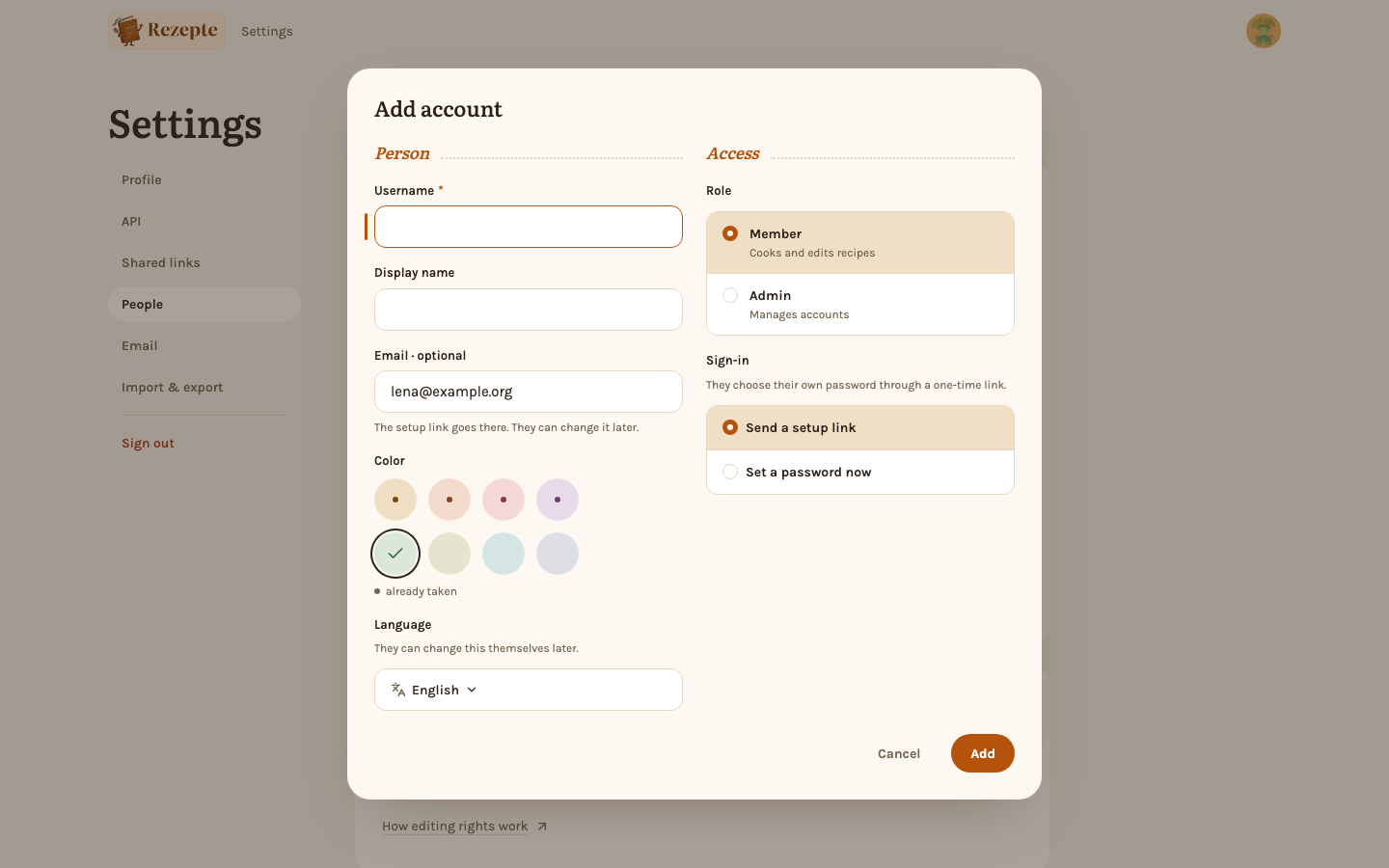
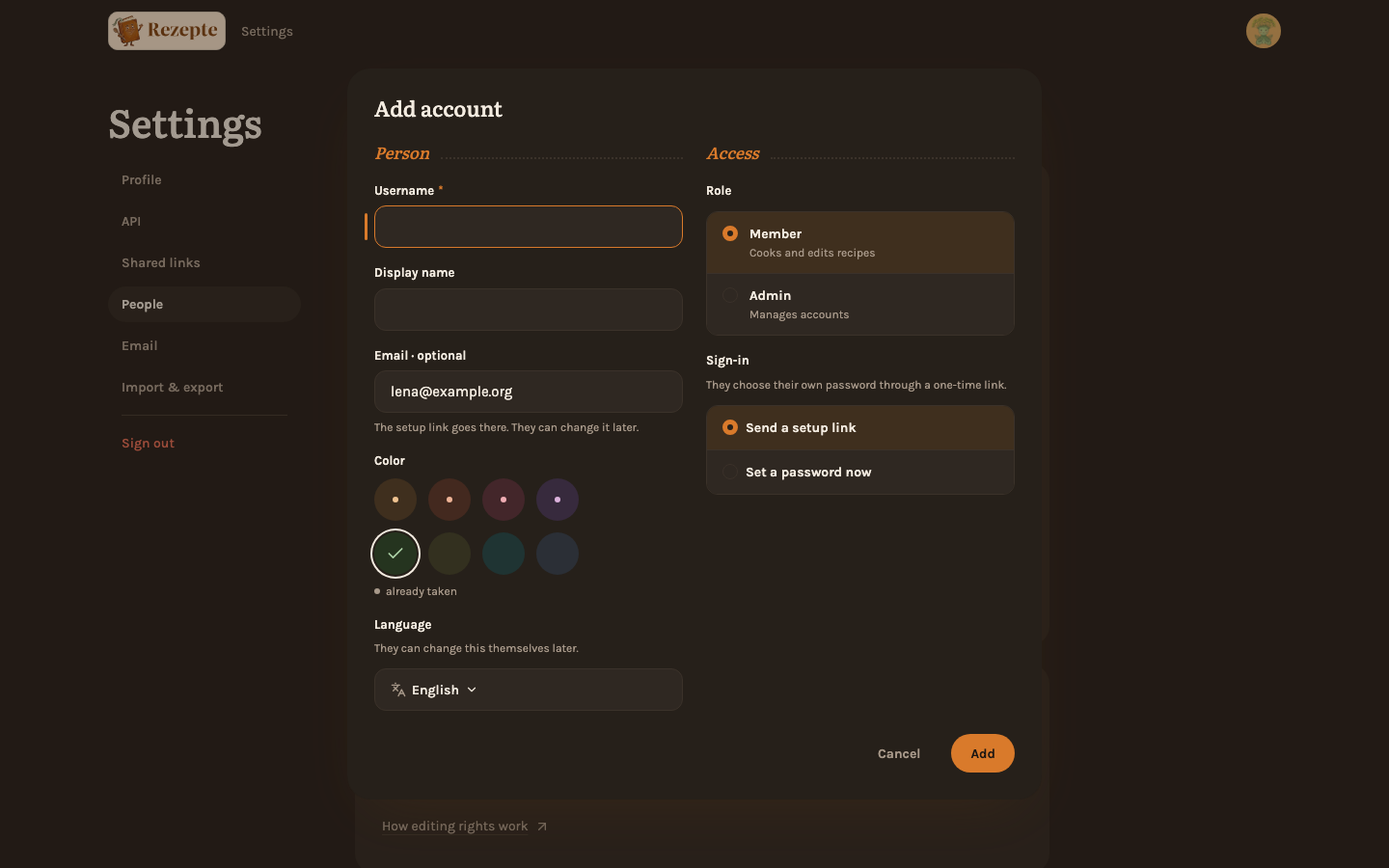
"Send a setup link" is the default and the way most accounts should start: it creates the account with no password at all and hands you a one-time link, which you send the person yourself however you normally would — chat, email, in person — or which Rezepte mails to them (see below). You never see or choose their password.
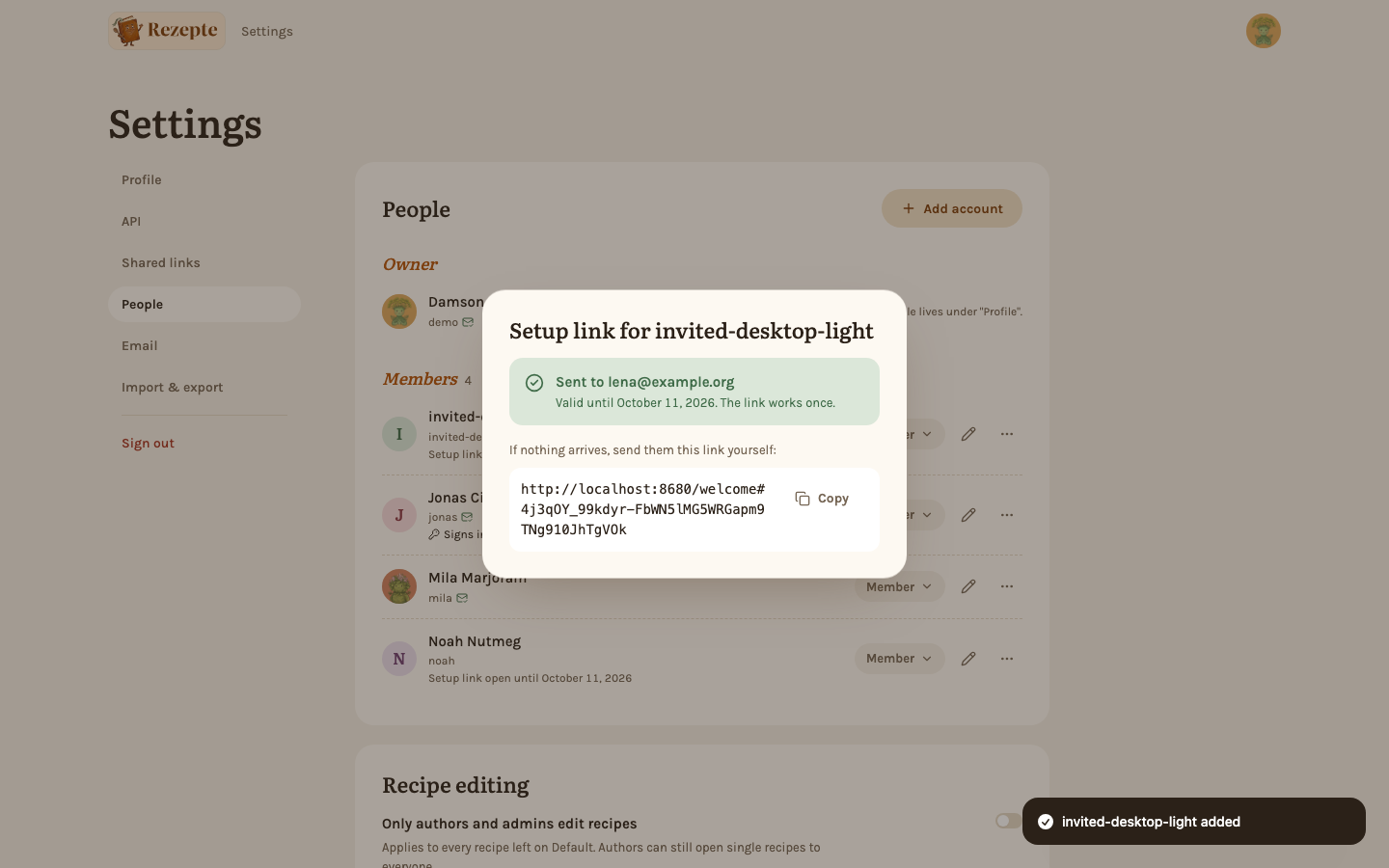
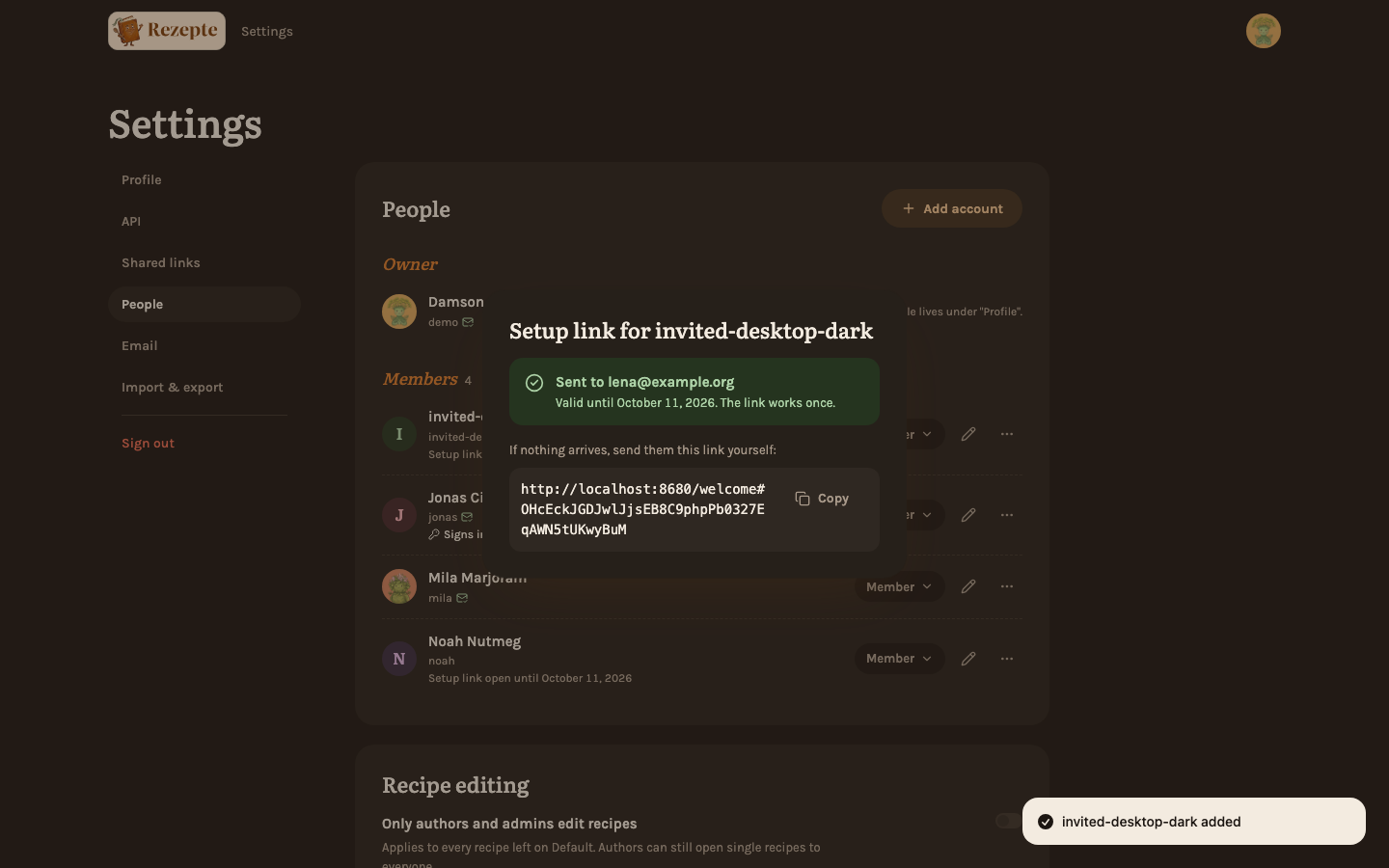
"Email" is optional. Give it and, when your Rezepte can send mail (see Mail), the button reads "Create and send link": the account is created and the link goes to that address in an invitation. The result window then says "Sent to …" with the date the link stops working, and keeps the link below it in case the mail does not arrive. Without mail set up, or if sending fails, you get the link on screen and pass it on yourself — the account exists either way. The address is saved on the account, unconfirmed until the person opens the mailed link, which counts as proof that it is theirs.
"Set a password now" is for when you are setting the account up together and can hand it over on the spot: type a password twice (8–128 characters), rated as you type against the username and display name you entered.
"Admin" manages accounts and can do everything a member can; "Member" cooks and edits recipes. The "Admin" option is offered to the owner only — any other admin creates members.
"Language" starts on the language you are reading right now, on the assumption that a household sets up accounts in the language it speaks. It is only a starting point: the language is the one profile field nobody else can change once the account exists, so the new member switches it themselves in their own settings if you guessed wrong.
"Display name" is optional: it is the name Rezepte shows on recipes and in this list, and left empty, the login name is used. The color picker starts on the color the fewest accounts hold, and a small dot marks each color somebody already has — you can still pick it. Both can be changed later, by that person or by the owner.
Change a role
Use the "Role" select in a member's row — on a phone, the "Admin" / "Member" switch in their sheet — to change their role; they move to the matching group right away. Only the owner has this control; every other admin reads the role from the group the person is listed under.
Change someone's name, color, photo or email address
The pencil in a person's row — "Edit profile" in their sheet on a phone — opens their photo, their display name, their color and their email address. "Add photo" or "Change photo" works as on your own profile (see Settings): pick a file, frame the round section, confirm; "Remove photo" puts their initial back. Name, color and photo are the owner's alone. The address follows the rule for resetting a password: any admin can change it for a member, only the owner for an admin, so an admin who is not the owner gets the pencil on a member's row with just the address in it.
Under the address it says whether it is confirmed. Change it and save, and the new address is unconfirmed: when your Rezepte can send mail, a confirmation mail that names you goes to it; without mail it stays unconfirmed. Clear the field to remove the address. Sending a setup link by mail to a new address (below) is the other way to change it, and confirms it once the link is used.
It is not offered on your own row. Your own name, color, photo and address live in "Settings" → "Profile", so there is only ever one place to change them (see Settings).
Allow or withdraw public sharing
On a wide screen the "..." menu in a person's row carries "May share publicly" as a checkbox, among the other actions below; on a phone it is a switch in the sheet that opens when you tap the person. It follows the same rule as resetting a password: any admin can switch it for a member, only the owner for an admin, and nobody for the owner. Turning it off pauses that person's existing public links until it is turned back on, and hides "Share publicly…" on their recipe pages meanwhile. It has nothing to do with whether public links are allowed for the household at all — that is the owner's own Public sharing switch, below the list of people. See Public links.
Reset a password
Open the "..." menu in a member's row — their sheet on a phone — for "Reset password", which sets a new password for that member and signs them out on every device. Type the new password twice; the reset only goes through when both match. Resetting another admin's password is the owner's alone, and nobody resets their own password here — that is "Change password" in your own settings, which asks for the current one.
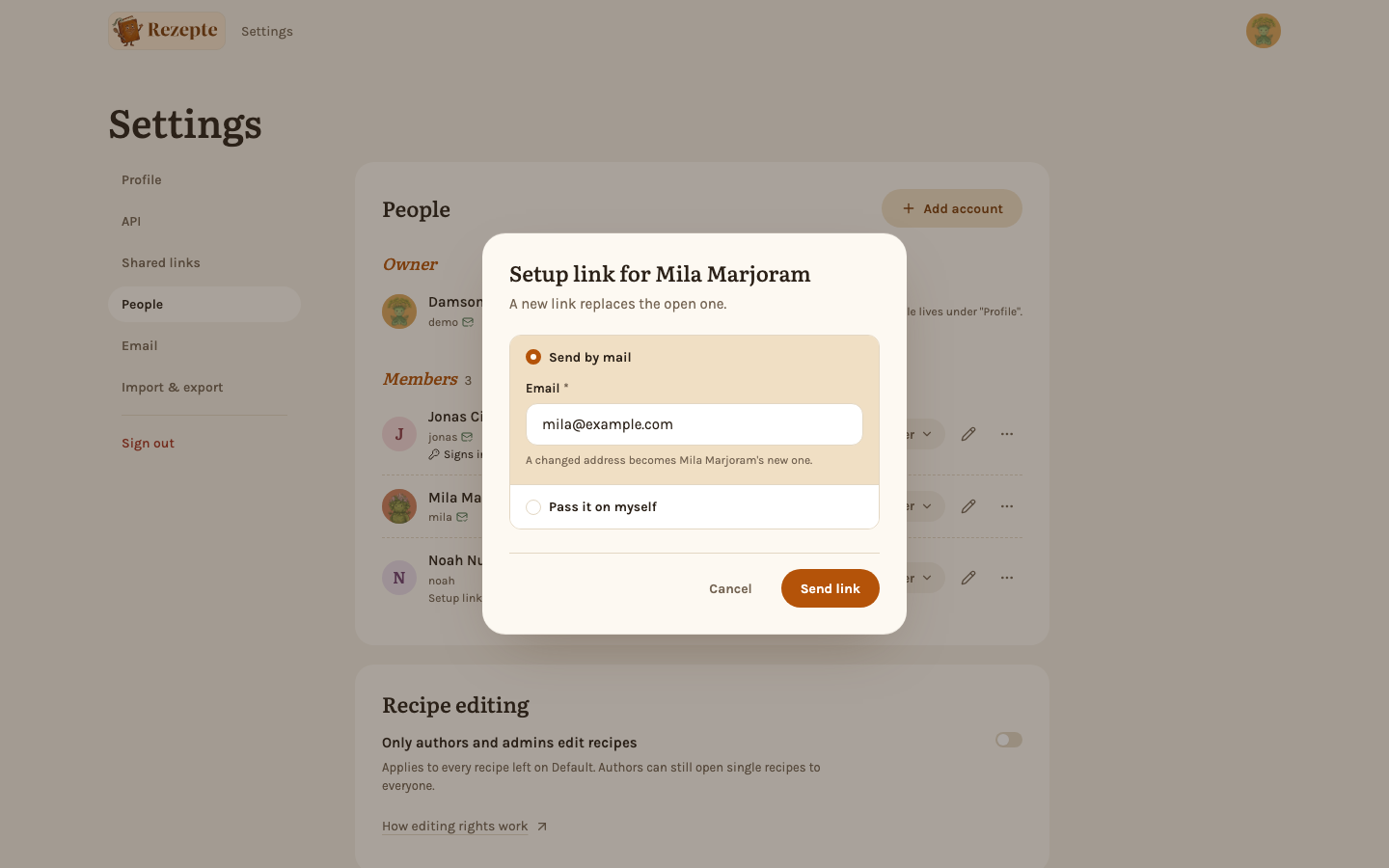
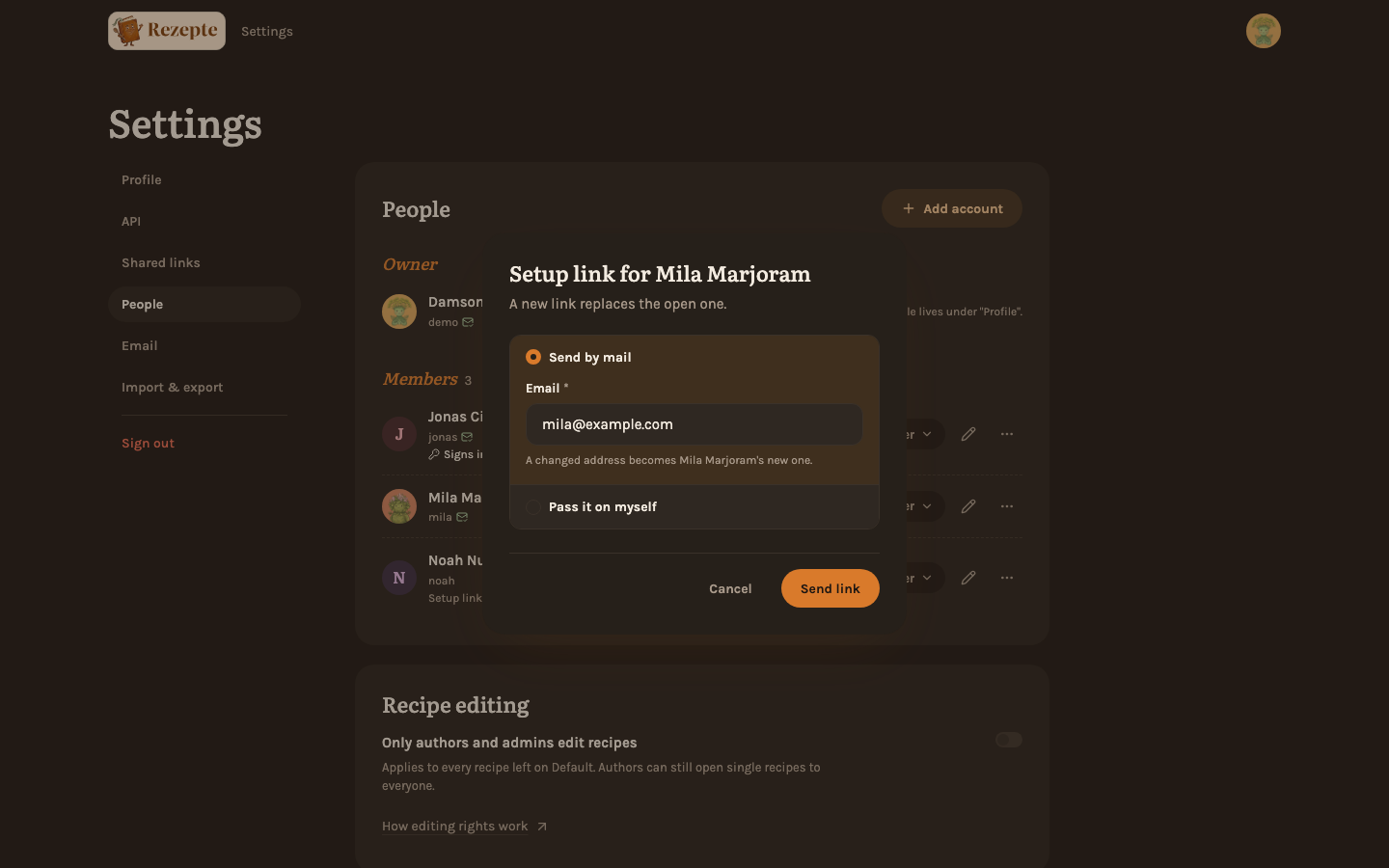
"Setup link", in the same menu, is the alternative that keeps you from ever knowing their password: it works exactly like the one offered when creating an account, and signs them out everywhere too once they use it. When your Rezepte can send mail, it first asks how the link gets there, the same kind of choice as "Add account" offers. "Send by mail" is picked, with the address on the account filled in; one you change becomes the account's new address, and "Send link" mails it. "Pass it on myself" drops the address, and "Show link" gives you the link to pass on yourself. Either way a new link replaces the open one.
Revoking a link
While a setup link is unused, the person's row reads "Setup link open until" the date it stops working — a week after it was issued. "Revoke link" ends it at once, no confirmation needed, since sending a fresh one is the same "Setup link" action again — on a wide screen in the "..." menu with the other actions, on a phone in the person's sheet, beside the same line. Before anyone has been sent a link at all, the row reads "Not set up yet" instead — unless the person already signs in through single sign-on.
Disconnect single sign-on
When your Rezepte uses single sign-on and a person has connected their account to it, their row reads "Signs in with" the provider's name, and "Disconnect" and the provider's name are among their actions — in the "..." menu on a wide screen, in their sheet on a phone. It follows the same rule as resetting a password and signs the person out on every device, so Rezepte asks you to confirm first. It works even when they have no password: their row then loses that line and reads "Not set up yet" instead, and a "Setup link" is how they get back in, with a password or by connecting the provider again.
Delete an account
"Delete account", at the end of the "..." menu — the last action in their sheet on a phone — asks "Delete account?" and, once confirmed, deletes the account. Their recipes are kept — see the note below.
Recipe editingOwner only
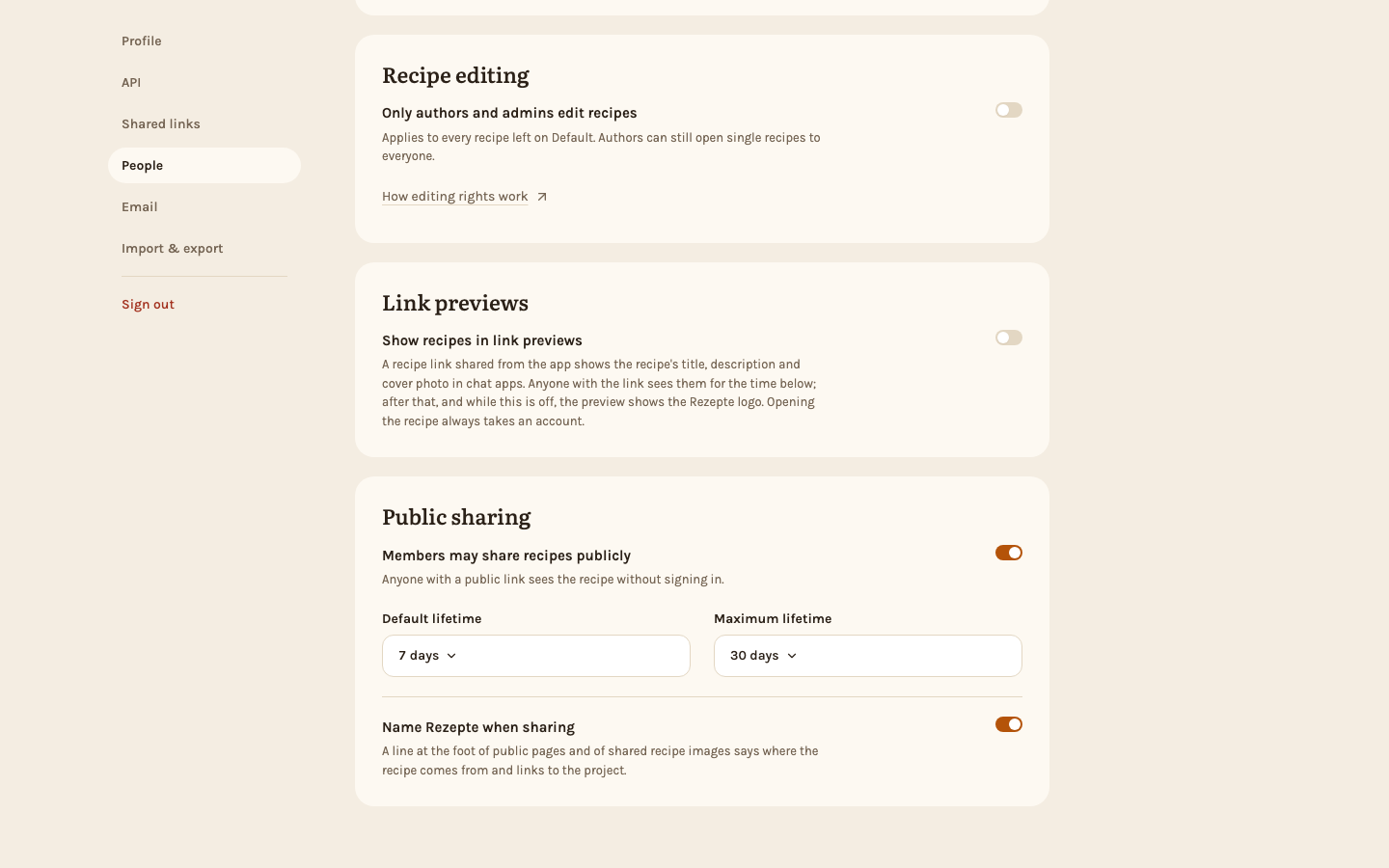
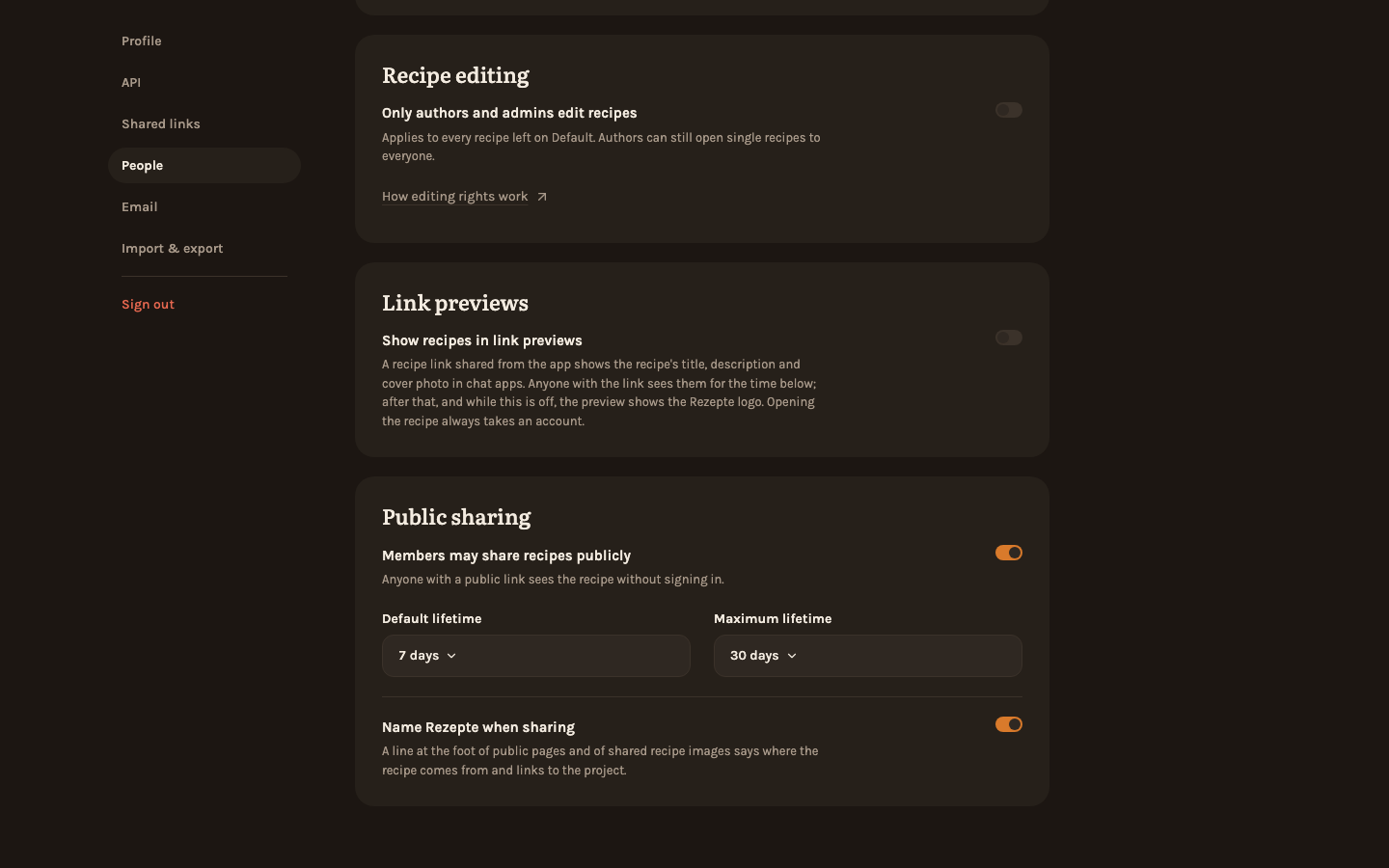
Below the list, admins find the Recipe editing card, which holds the household setting that locks recipes to their authors and admins. The owner switches it; every other admin sees what applies right now. Editing rights explains how it combines with the setting on each recipe.
Public sharingOwner only
The Public sharing card is where the owner turns public links on for the household — after confirming, since from then on anyone a link reaches sees the recipe — and picks the default and the longest lifetime a new link may have. This is the household-wide switch — whether any member may create a public link at all — separate from "May share publicly" per person above; every other admin sees a sentence stating what currently applies. The owner also finds Name Rezepte when sharing there, on by default: it puts a line at the foot of every public page and every recipe passed on as an image naming Rezepte, with a link to the project. Switching it off takes that line away from public pages at once, for links already sent too, and from every image made afterwards. See Public links.
Good to know
The owner is listed under "Owner" and their row carries no actions at all: that account cannot be deleted, cannot lose its admin rights, and its password cannot be reset from here by anyone, the owner included. So the household always keeps at least one admin. You also cannot delete your own account from this page.
A display name is not a login
Renaming somebody changes only what Rezepte shows. They still sign in with their username, which is why the list prints it under the display name. Display names do not have to be unique either, so two people can both be "Mia" — and their recipes stay theirs whatever they are called.
They are not deleted — they are transferred to the admin who performed the deletion, who becomes their author. Where the deleted member was the last to edit somebody else's recipe, that admin takes their place as "Last edited by" too; the recipe's author stays who it was. Each recipe's editing setting stays as it was. Their comments stay too, under "Former member" rather than the admin's name.
The same list, with a line saying that admins manage the accounts, and no buttons: no "Add account", no role select, no "Reset password" or "Delete", and no Recipe editing card. On a phone only your own row opens anything — your profile. The same rule is enforced by the API, so the missing buttons are a courtesy, not the only protection. The list shows login names, so everyone in the household can see what the others sign in with — never their passwords.