
Recipes
Create, edit, delete, favorite and mark recipes tasty
Start a recipe
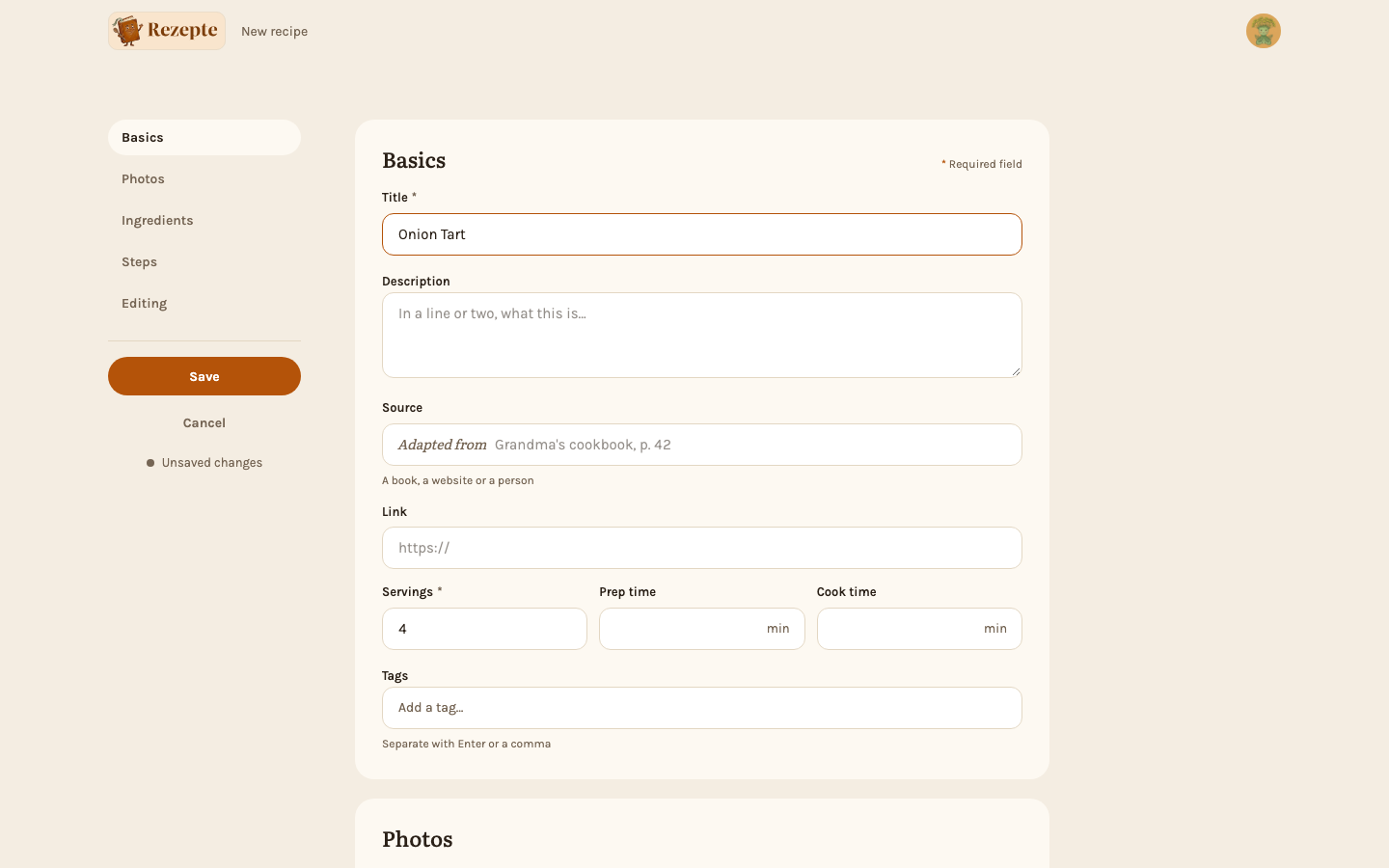
Click "New recipe" in the top bar or the command palette; on a phone, tap "+" and then "Write it yourself". While there are no recipes at all, the overview says "No recipes yet" and offers "New recipe" right there. To take a recipe from a website or from copied text instead, see Importing a recipe.
Fill in the basics
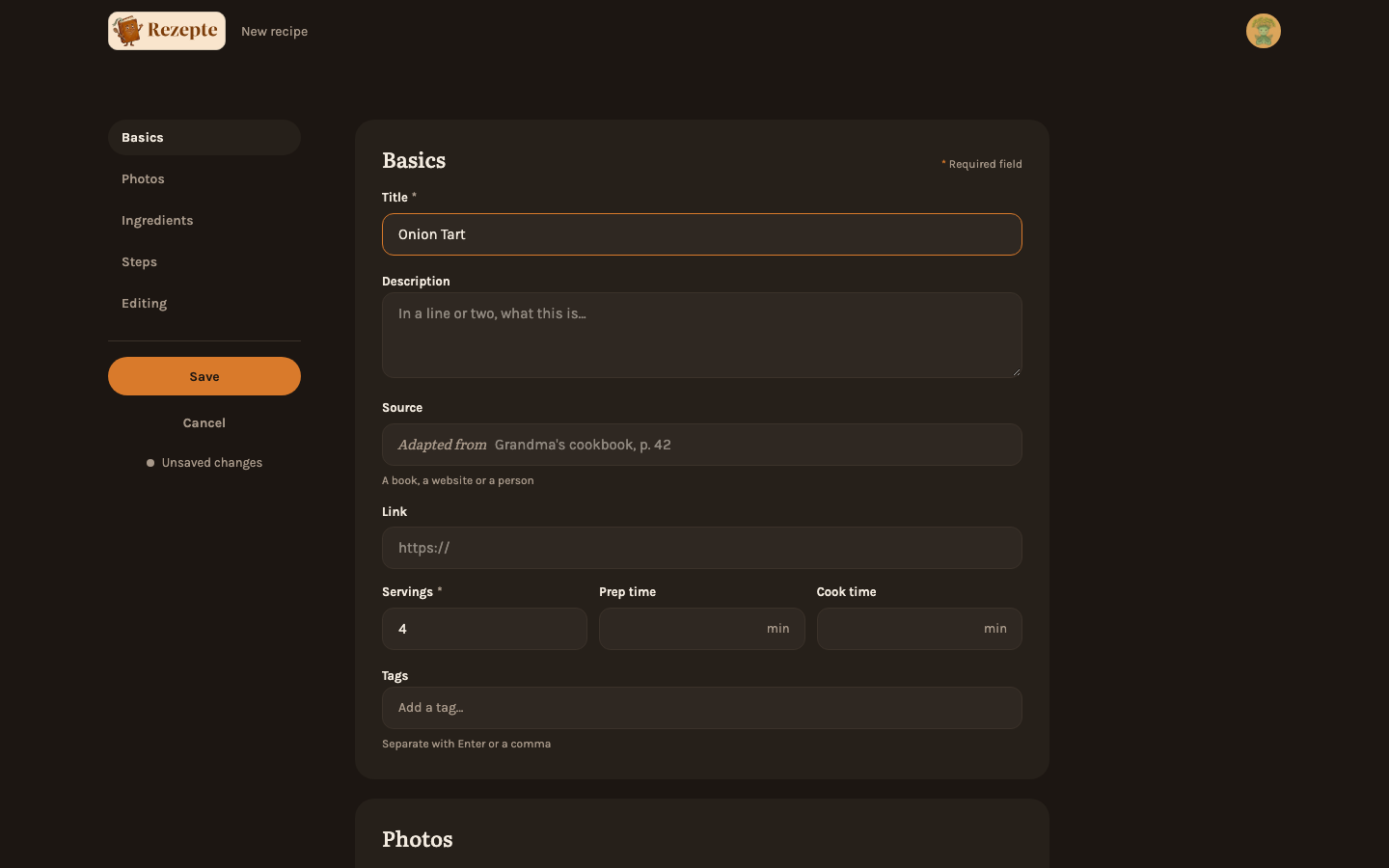
Under "Basics": a title, an optional description, servings (1–99), "Prep time" and "Cook time" in minutes, and where the recipe comes from: "Source" names it — a book with its page, a website, a person — and "Link" takes an http:// or https:// address. Both are optional. The recipe page credits them in one line under the description, "Adapted from Grandma's cookbook, p. 42", with the name as the link when there is one; a link without a name shows the site's address instead.
Add ingredients
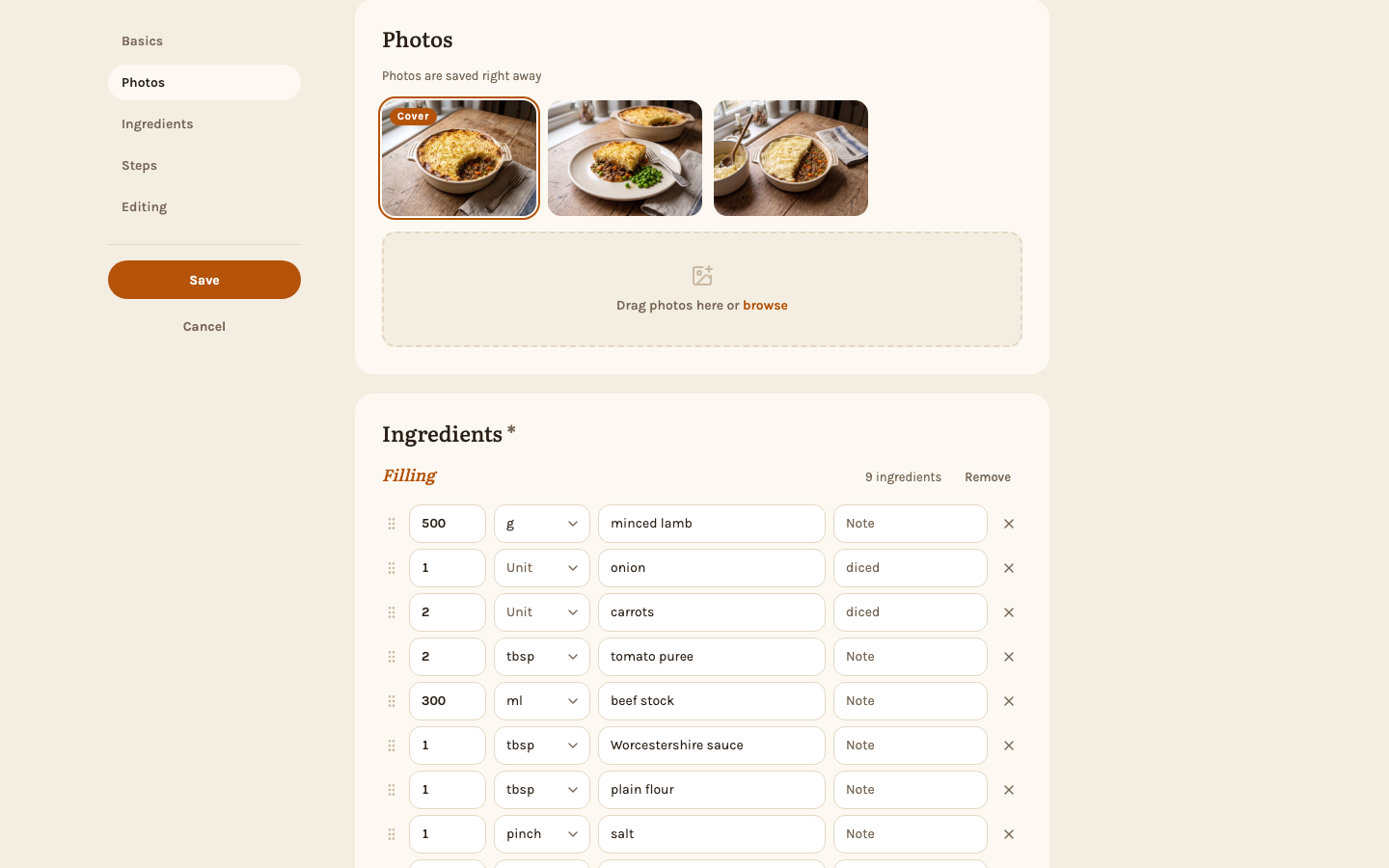
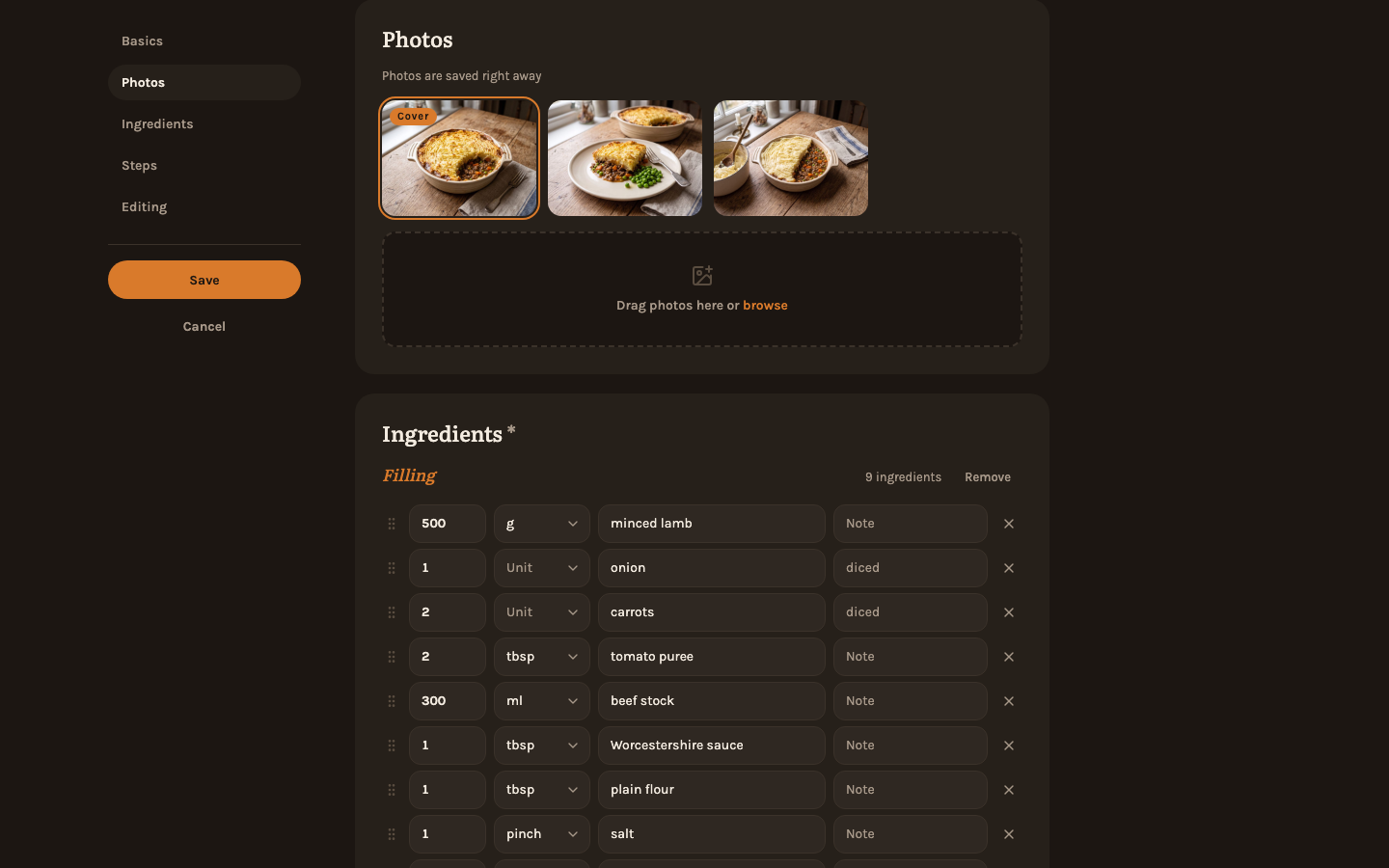
Under "Ingredients", use "Add group" to split the list into sections, e.g. "Filling" and "Mash topping". Each row takes an "Amount", a "Unit", the "Ingredient" itself and an optional "Note"; "Add row" adds another. "Unit" suggests the usual units in your interface language — "tsp", "cup" or "oz" in English, "TL", "Bund" or "Zehe" in German. Opening the field lists all of them, typing narrows the list, and a unit that is not on it is fine too: whatever you type is kept as written.
Add steps and tags
Under "Steps", each step is a field of its own; "Add step" adds the next one.
Under "Tags", type a tag and press Enter or a comma to add it. As you type, tags already used on other recipes are suggested; a name nobody has used yet is offered as "new: …". Backspace in the empty field removes the last tag again.
Link ingredients in a step
As you type a step, a dotted underline appears under a word the app recognizes as an ingredient — "Fry the onion and carrots" underlines "onion" and "carrots". Put the cursor in an underlined word to see what it points at and accept or dismiss the suggestion, or leave it be; under the step, a line counts the links and suggestions and opens into a list of them. Every open suggestion is accepted when you save, and a note above the steps says how many ("Saving accepts 3 suggestions") next to an "Accept now" button that accepts them right away.
Two ways to link a word yourself. Type @ to pick an ingredient and insert its name — the picker lists every ingredient with its quantity and group, so the same name in two groups is easy to tell apart. Or select a word already in the sentence (putting the caret in it is enough) and click "Link word": that links the word as it stands to any ingredient, which is what you need when the wording differs from the ingredient's name — "meat" for an ingredient listed as "ground beef". Deleting a linked word hides its link, and undoing the deletion brings both back; a link whose word is gone when you save is simply left out.
Mark times in a step
A duration in a step — "25 to 30 minutes", "1 hour 30 minutes", "2.5 hours" — gets a dotted underline as you type, if it is written in English or German. Put the cursor in it to accept or dismiss the suggestion; accepted, it is shown with a small clock on the recipe page and in cook mode, and every open suggestion is accepted when you save. Only text with a number counts, so "overnight" stays plain. Times show up in the same line under the step as links ("2 times"), where you can also remove one.
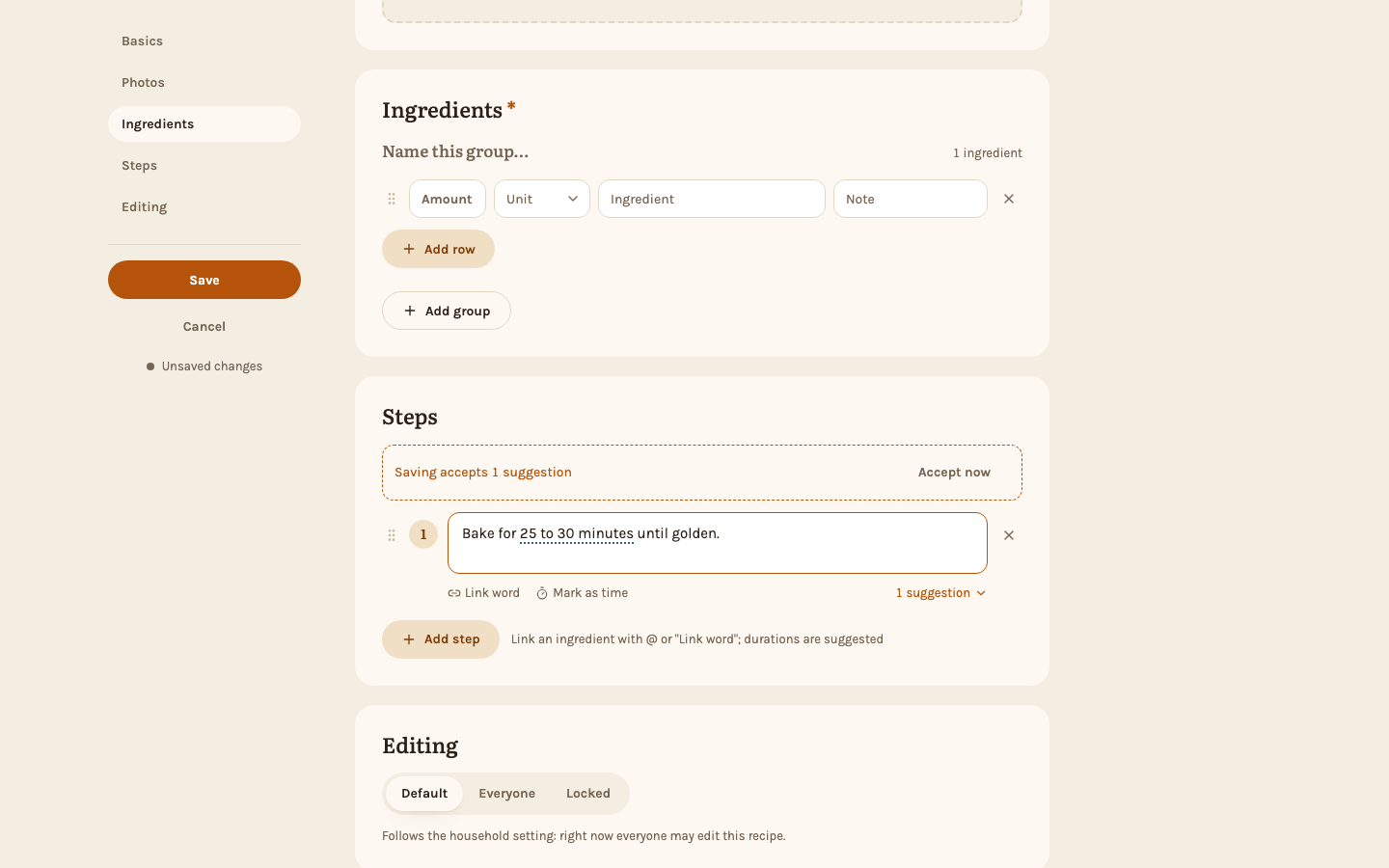
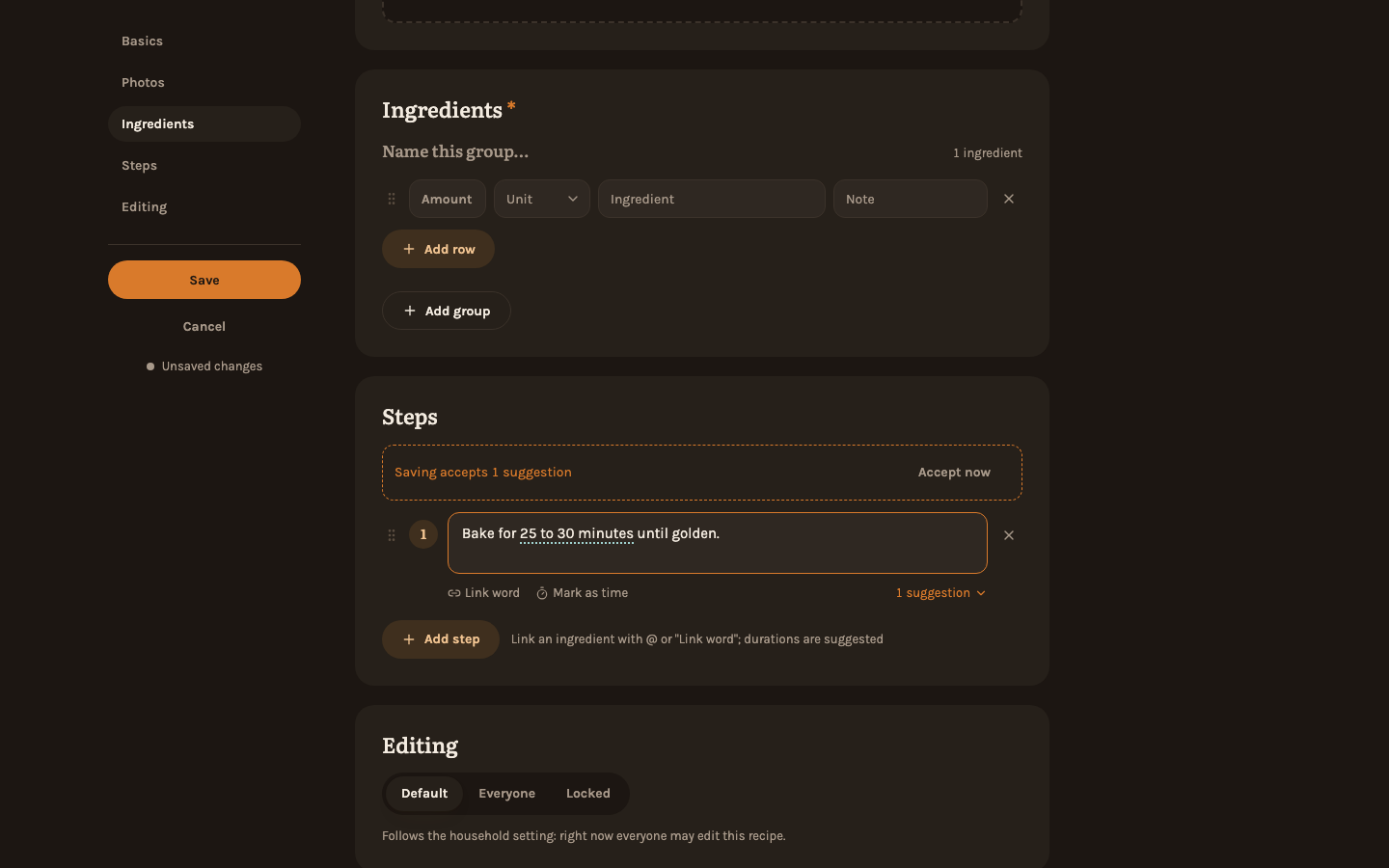
To mark one the app missed, or one in another language, select it and click "Mark as time", choose "Seconds", "Minutes" or "Hours" — the window shows the duration it will mark — and click "Set". A selection without a number, one that is too long, or one that is already marked is not taken; a line under the buttons says why. Recipes you saved earlier get times the next time you save them in the editor.
Decide who may edit it
The last section, "Editing", decides who besides you may change the recipe — see Editing rights. Leave it on "Default" to follow the household setting.
Save
Click "Save".
A recipe needs a title, servings and at least one ingredient with a name; those fields carry a *, and an empty one has a short amber stroke beside it until you fill it in. If something is missing or wrong, saving stops and marks the field in red with a note under it. The note goes away as soon as you type in that field.
Good to know
Pressing Enter in an ingredient's "Ingredient" or "Note" field adds a new row below it, and Backspace in a row that is completely empty removes it. Every ingredient, step and photo has a drag handle for reordering, and an ingredient can be dragged into another group; groups themselves keep their order. Without a mouse, focus the handle, pick the item up with Space/Enter and move it with the arrow keys (see Keyboard shortcuts). Leaving the editor with unsaved changes asks "Discard changes?" first.
The detail page
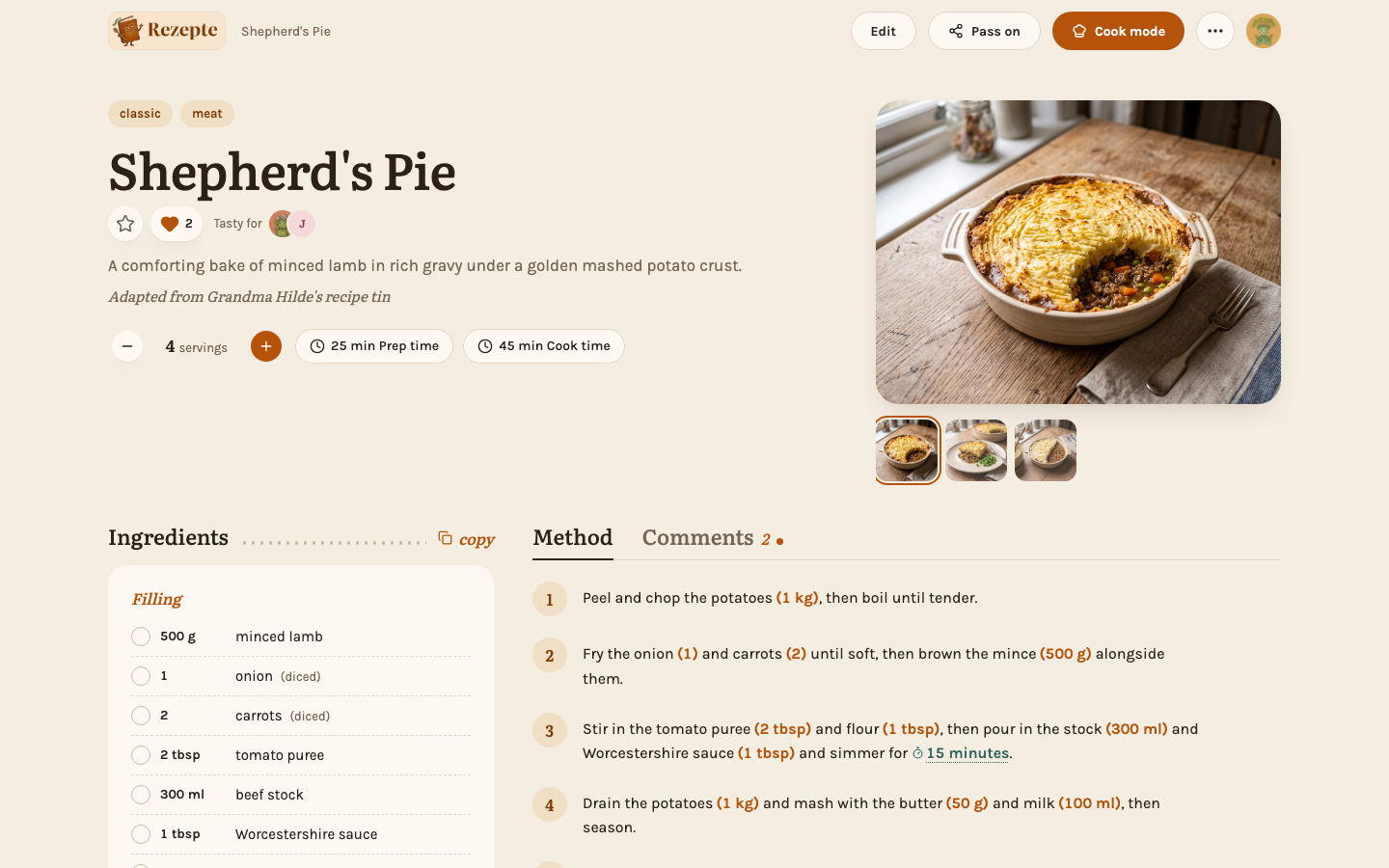
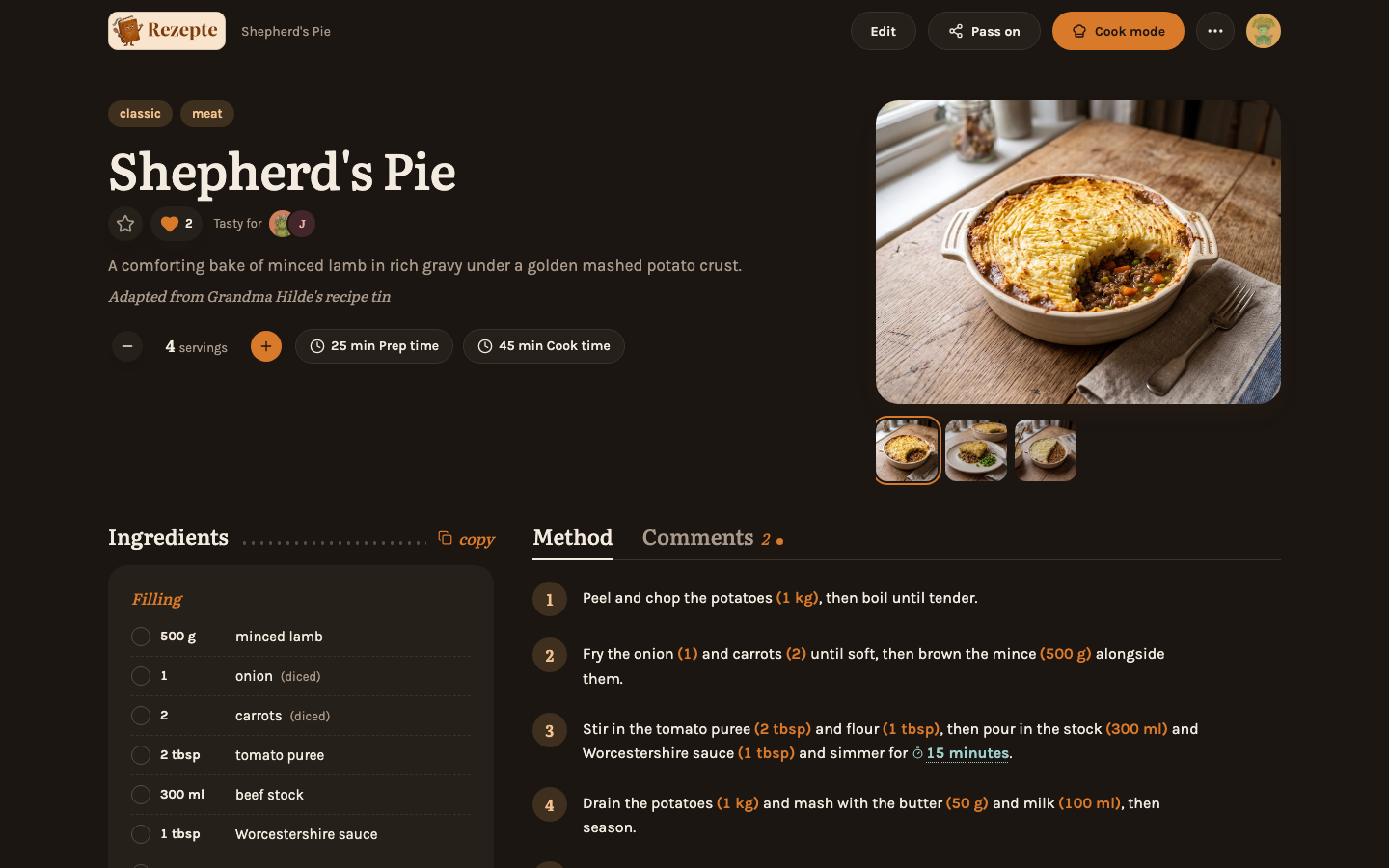
The page arranges itself by the width of your screen. From 840 px wide, the ingredients sit beside the method; on a narrower screen they come first and the method follows below. On a tablet between 600 and 840 px, an ingredient list of six rows or more (group names counted) splits into two columns, so the card does not leave half its width empty.
Servings and times show as pills at the top. Ingredients list with checkboxes for checking items off while shopping or cooking; the steps follow under "Method". The "Shopping list" stub at the end of the ingredients copies everything you have not checked off, and "copy" beside the "Ingredients" heading copies the whole list (see Copy a shopping list). A word an ingredient was linked to in the editor shows that ingredient's quantity right after it, in parentheses — "potatoes (1 kg)" — scaled to whatever servings you have chosen (see Servings); the same annotation appears in cook mode.
"Edit" opens the editor. The "More actions" menu (…) holds "Edit" as well, "Copy link", which copies the recipe's address to share, "Share publicly…", which makes a link for someone without an account, and "Delete", which deletes the recipe after confirming. "Share publicly…" appears while the owner allows public links and you may create them; once you have a link for the recipe, the item reads "Public link…" instead (see Sharing recipes). On a phone, a share button next to the menu opens the phone's share sheet with the recipe's link; where the browser has no share sheet, it copies the link instead. Only the recipe's author and admins can delete it, and "Edit" is not shown on a recipe that is locked for you (see Editing rights).
Behind the tab beside "Method", the comments hold what the household noted while cooking the recipe, and anyone can add one.
At the foot of the page, a line says who added the recipe and when ("Added by … on …"), a second one who last changed it ("Last edited by … on …") once somebody has, and — on a locked recipe — who can edit it.
On the overview, each card carries the same information in small: one circle with the photo of whoever added the recipe — or their initial in their color, if they have no photo — and a second one when somebody else edited it last. Click the circles, or tap them on a phone, to open a person card for each (see Tour of the app).
Favorites
The star under the title on a recipe's page, and on every recipe card on a wider screen, marks it as a favorite; tap it again to take the star off. On a phone the cards leave the star off so it does not cover the photo; open the recipe to star it. Favorites are your own — each member stars for themselves, and nobody else sees your stars. "Favorites only" in the overview's filters then narrows the list to them (see Tags and search).
Tasty
The heart tells whoever wrote a recipe that you liked it — "Tasty", or "Lecker" in German. Unlike a favorite, a tasty mark is for everyone to see: the heart shows how many members found the recipe tasty, and the recipe's page names them under the title ("Tasty for"). Tap the heart again to remove your mark.
You mark a recipe on its page, next to the star, and on a wider screen also with the heart in the bottom-left corner of its card. On a phone the card only shows the count. You cannot mark your own recipes — the heart there only counts the others.
"Tastiest" in Sort by puts the recipes with the most marks first (see Tags and search).
- Title: up to 200 characters
- Description: up to 2000 characters
- Servings: 1–99
- Preparation and cooking time: up to 1440 minutes (24 h) each
- Source: up to 200 characters
- Link: an
http://orhttps://address, up to 500 characters - Tags: up to 20, each up to 40 characters
- Ingredient groups: 1–20, each with up to 100 ingredients
- Steps: up to 50, each up to 2000 characters, each with up to 30 linked ingredients and up to 20 times
- A marked time: up to 60 characters of text, and at most one week
Every recipe gets a URL-friendly slug derived from its title — German umlauts and ß are transliterated (ä→ae, ö→oe, ü→ue, ß→ss) and remaining diacritics and punctuation are stripped. If another recipe already has the same slug, a number is appended (-2, -3, …).
Deleting a recipe also removes its uploaded photos. This cannot be undone.
Not every ingredient word is recognized automatically, and a recipe carries linked words only once it has been saved with them — open it in the editor, accept or add the links you want, and save. Only the first mention of a word in a step ever shows a quantity, even if the word appears again later in the same sentence.